Planfix
1. Go to Integrations -> Chats -> E-chat.
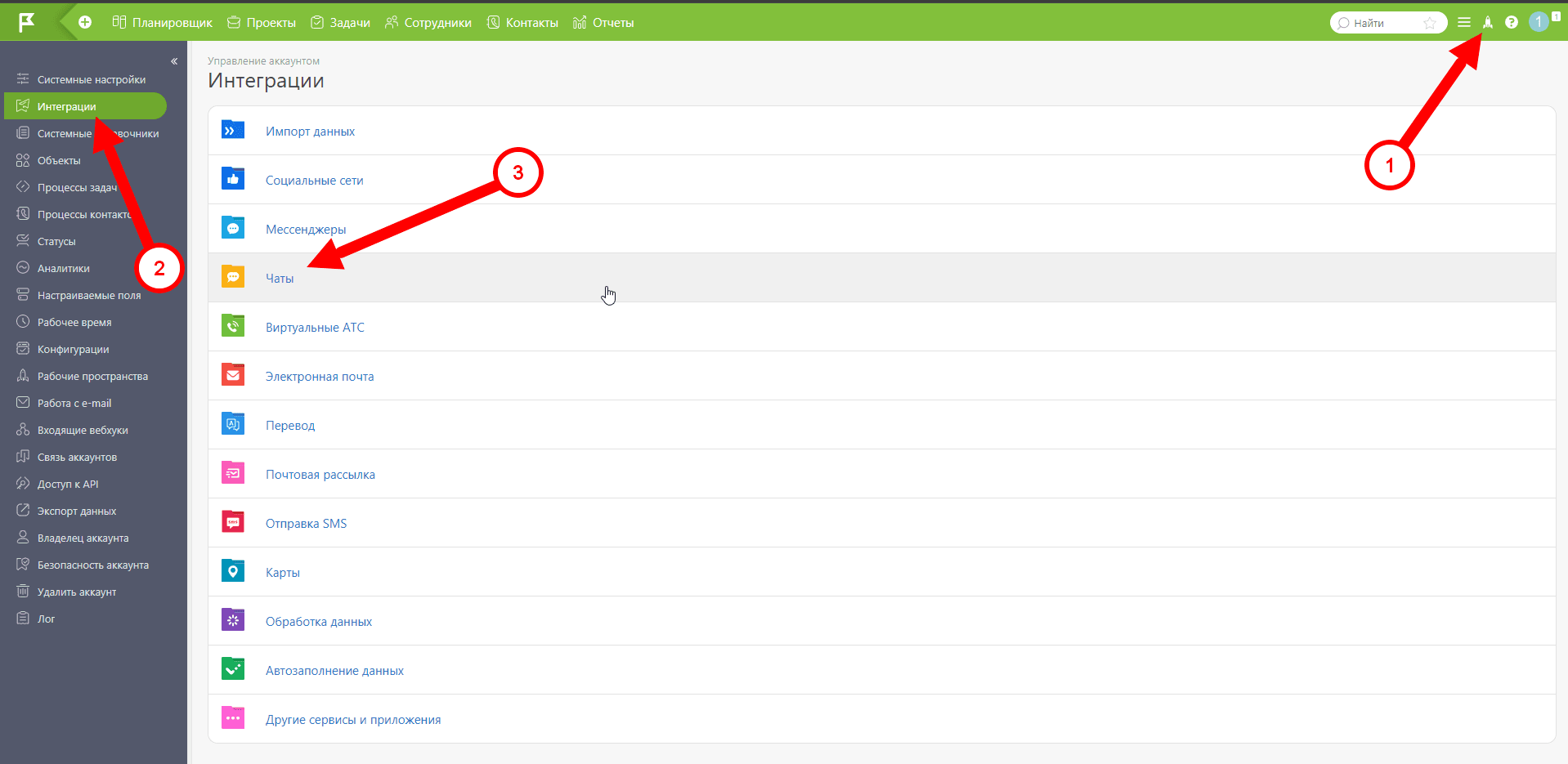
2. Click on the “Add” button
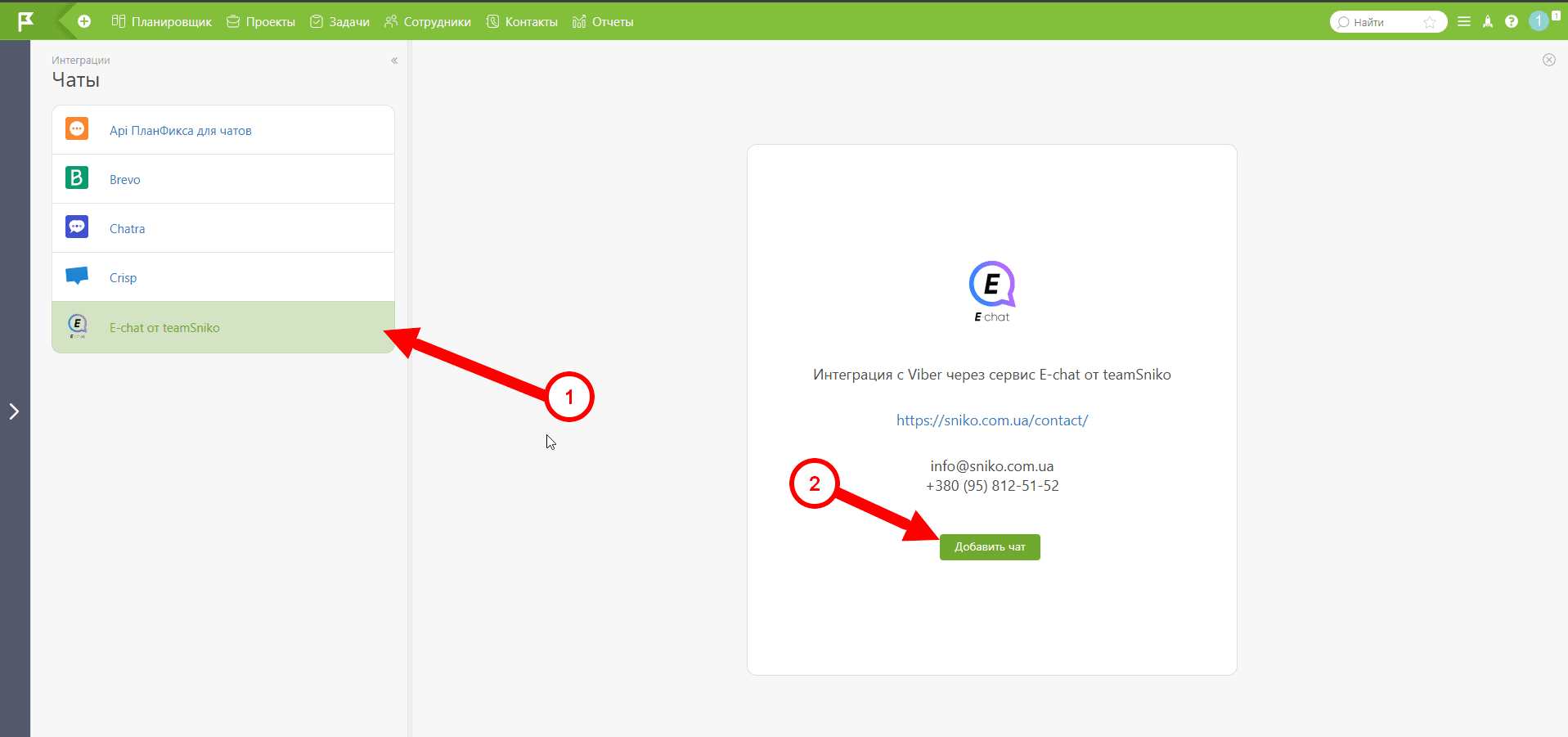
3. Next, you need to fill out the form provided:
- Name - arbitrary,
- Notification URL :
https://api.sniko.com.ua/planfix/echat/субдомен
(for example, for https://test.planfix.ua/ the address would look like this: “https://api.sniko.com.ua/planfix/echat/test")
- Providerid is the phone number
- Authorization key for Planfix is an API key from the personal cabinet of the E-chat service.
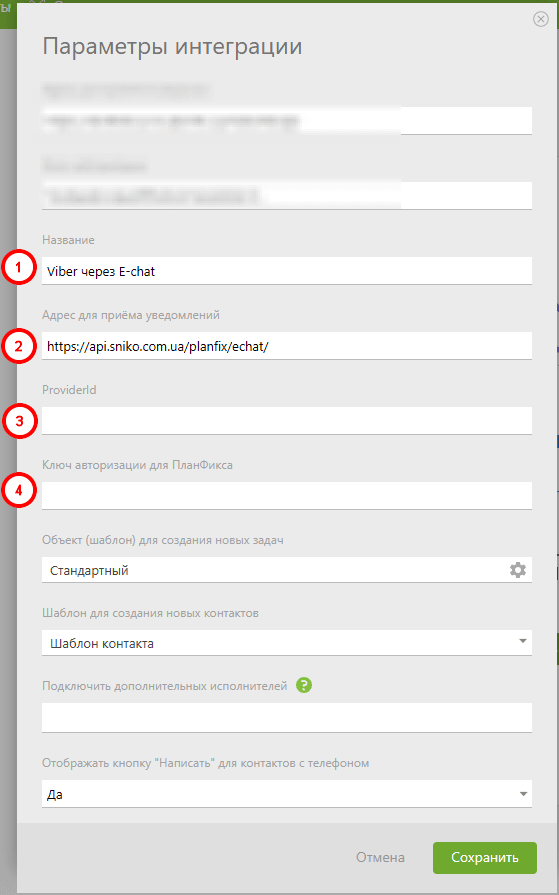
4. Other settings are arbitrary.
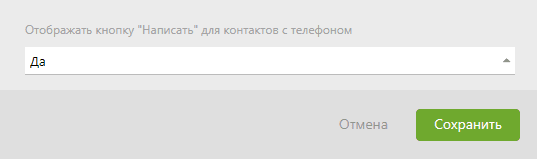
5. In the field: "Show "Message" button in contact cards if phone number is set" - it is necessary to set “YES”
(If there is a need to initiate dialogue with a clients)
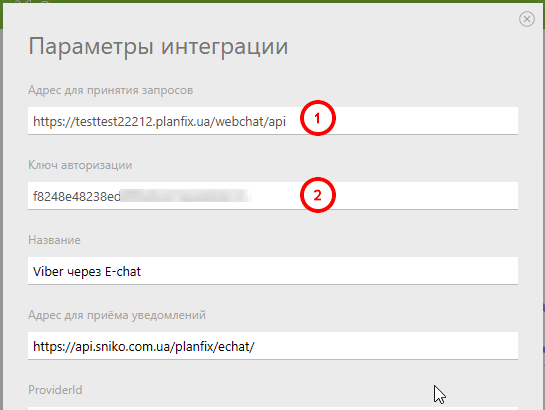
6. To complete the integration settings, the values of the fields:
“Address for accepting requests”
“Authorization key”
As well as your phone number should be copied and sent to the Telegram dialog:
https://t.me/Sniko_bot
or
https://t.me/sniko_kh
NOTE!
Since the widget for Viber integration with Planfix was developed by a third-party team of developers - Payment for the widget is separate from the payment for our E-chat service.
You can find out the cost of purchasing access to the widget directly from the widget developers.
Contacts for communication:
https://t.me/sniko_kh
Was this article helpful?
Share it with colleagues who might need it
Connect messengers to your CRM
Message clients first right from the client card and keep all conversations in your CRM. 7-day free trial, up to 40% off when connecting several numbers.