Trendcrm
Connecting Viber number to Trendcrm
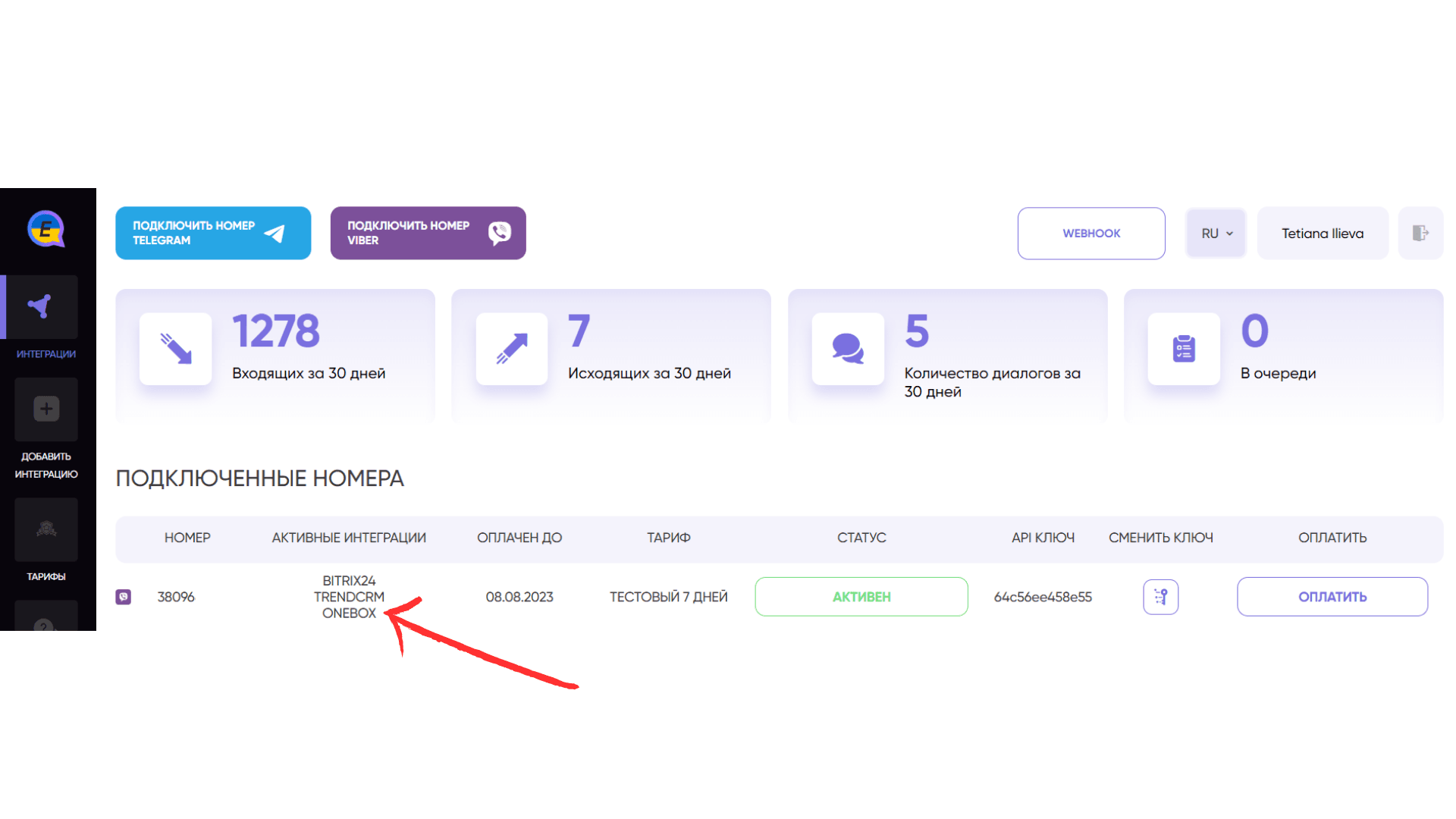
Viber number integration
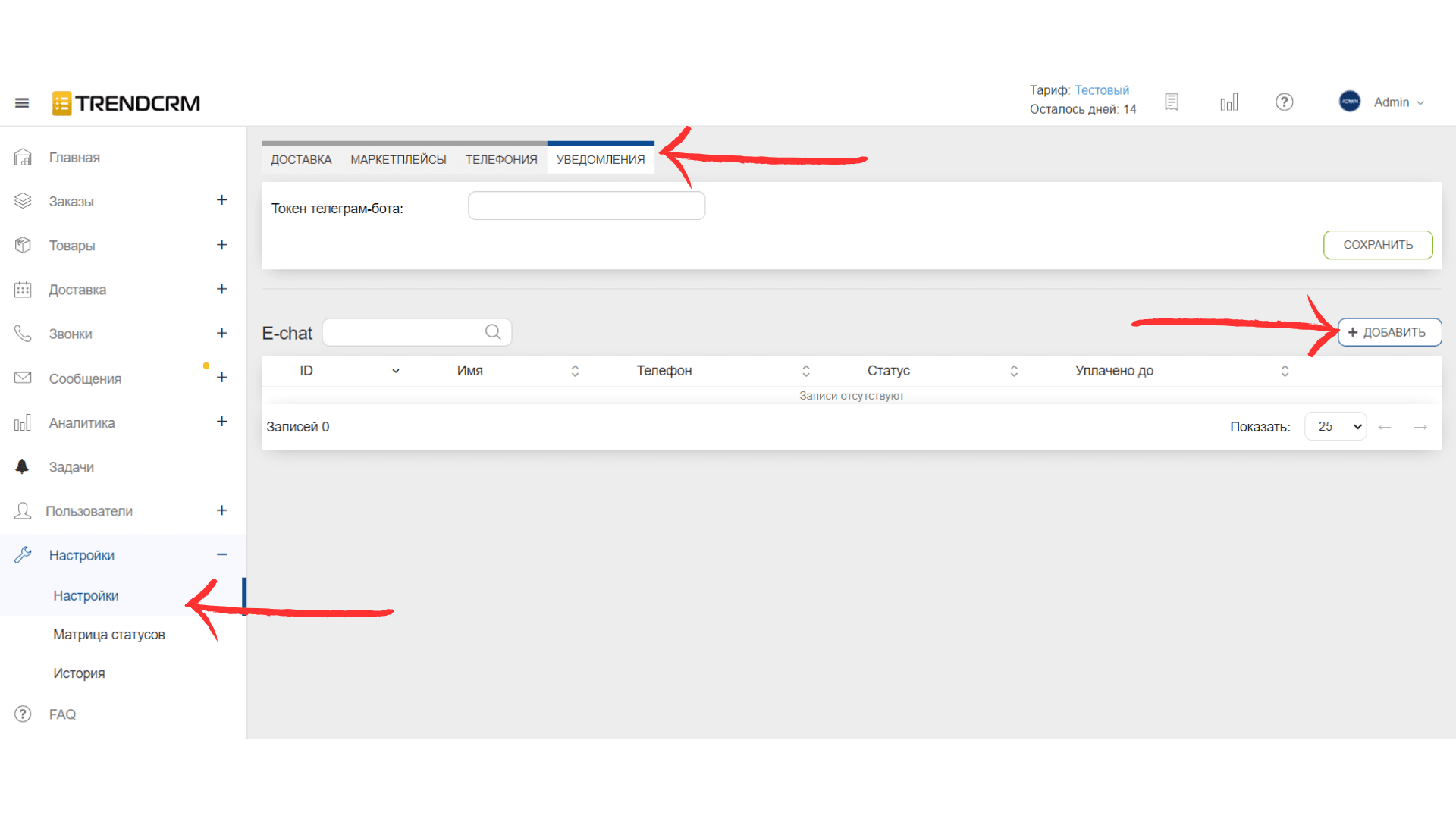
- Go to Trendcrm
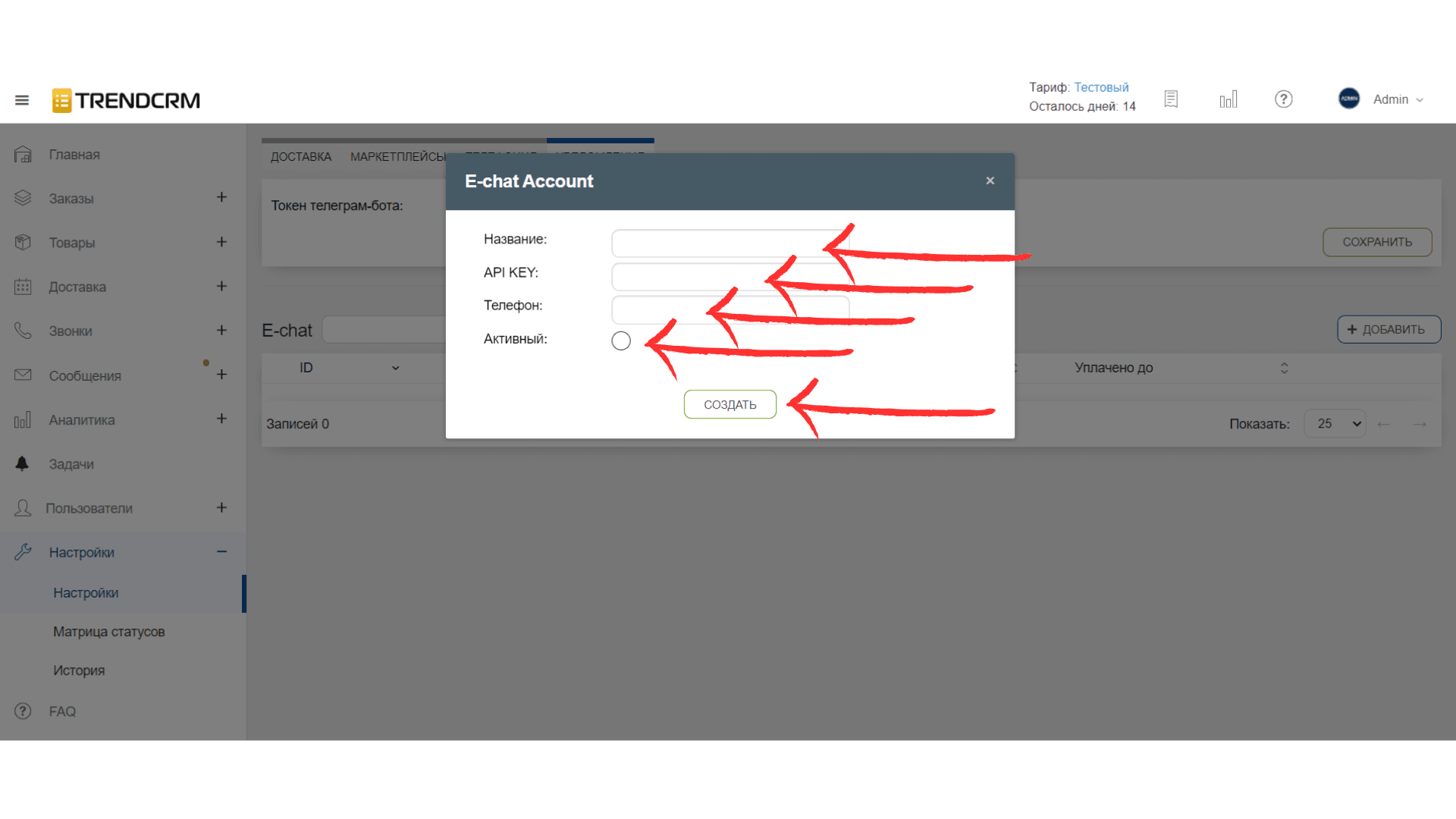
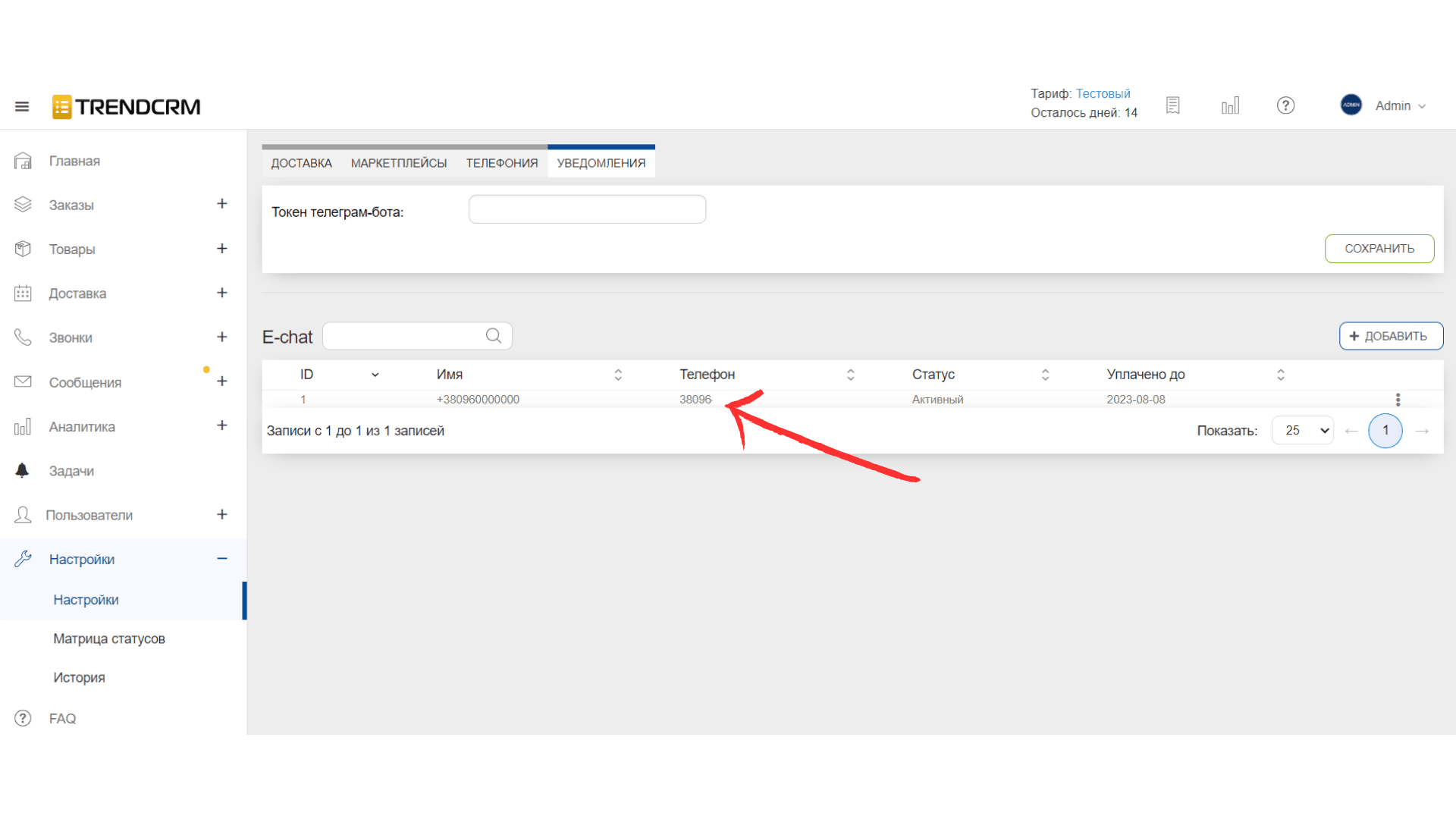
- Go to “Settings” - “Messages” and click “+Add”
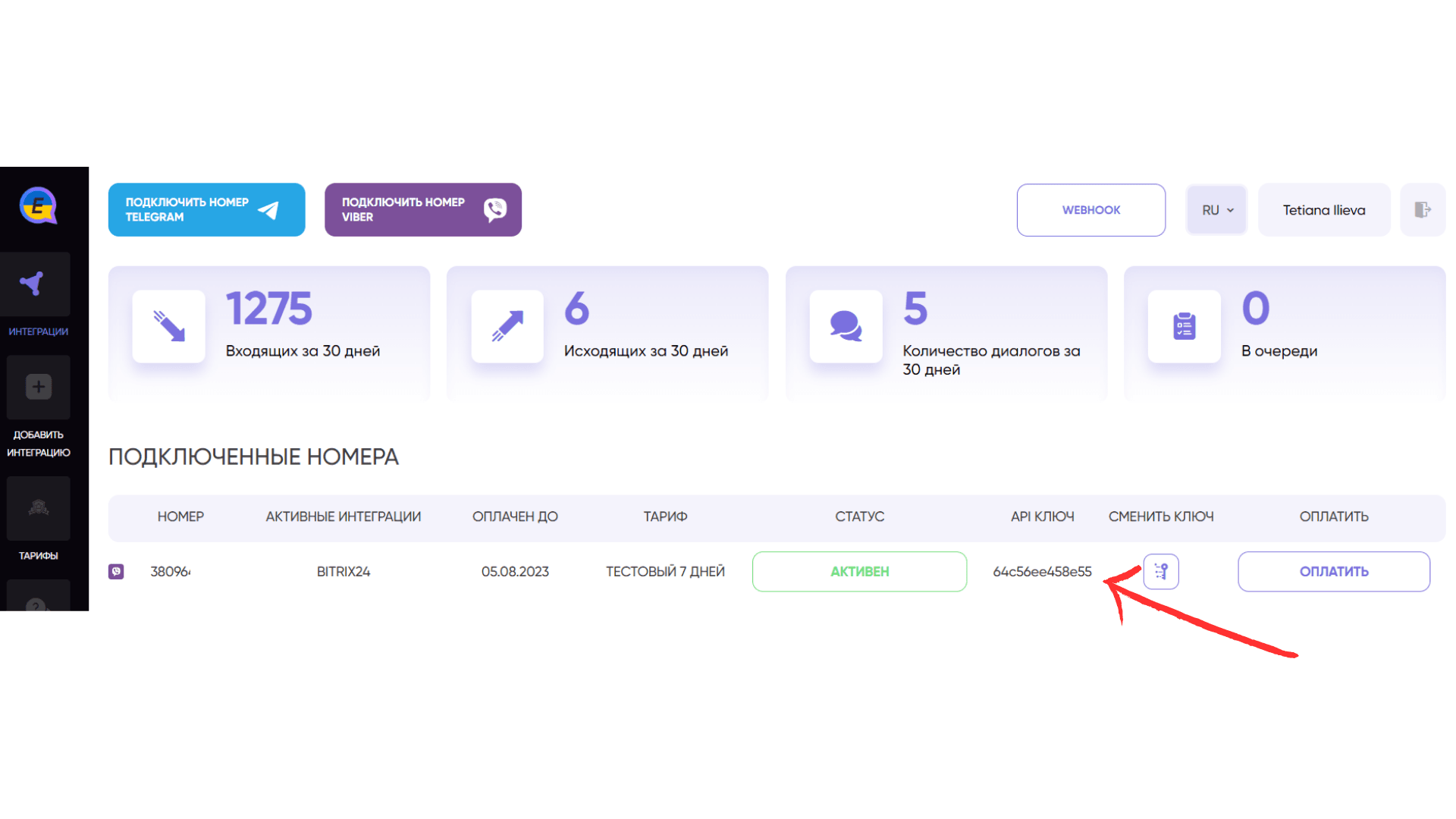
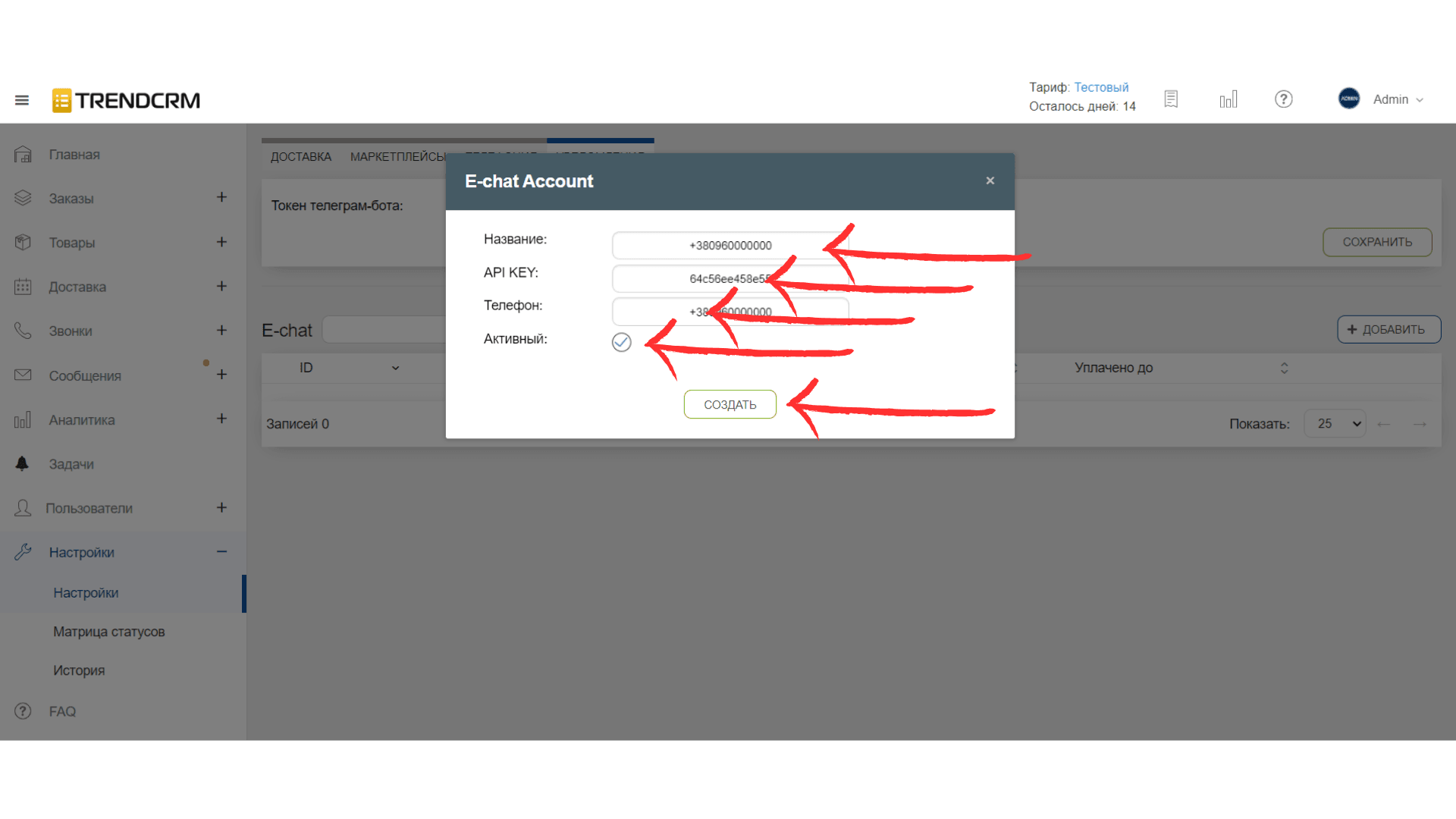
- In the fields, enter the number to be added (the number must be activated in the “E-chat” service in your personal cabinet, and the corresponding API key (you can find it in your personal cabinet “E-chat”).
- The new integration will be immediately displayed in your personal E-chat account
CONGRATULATIONS! You will now be able to see all incoming and outgoing messages within Trendcrm and communicate with your customers in one place.
Write first directly from Trendcrm
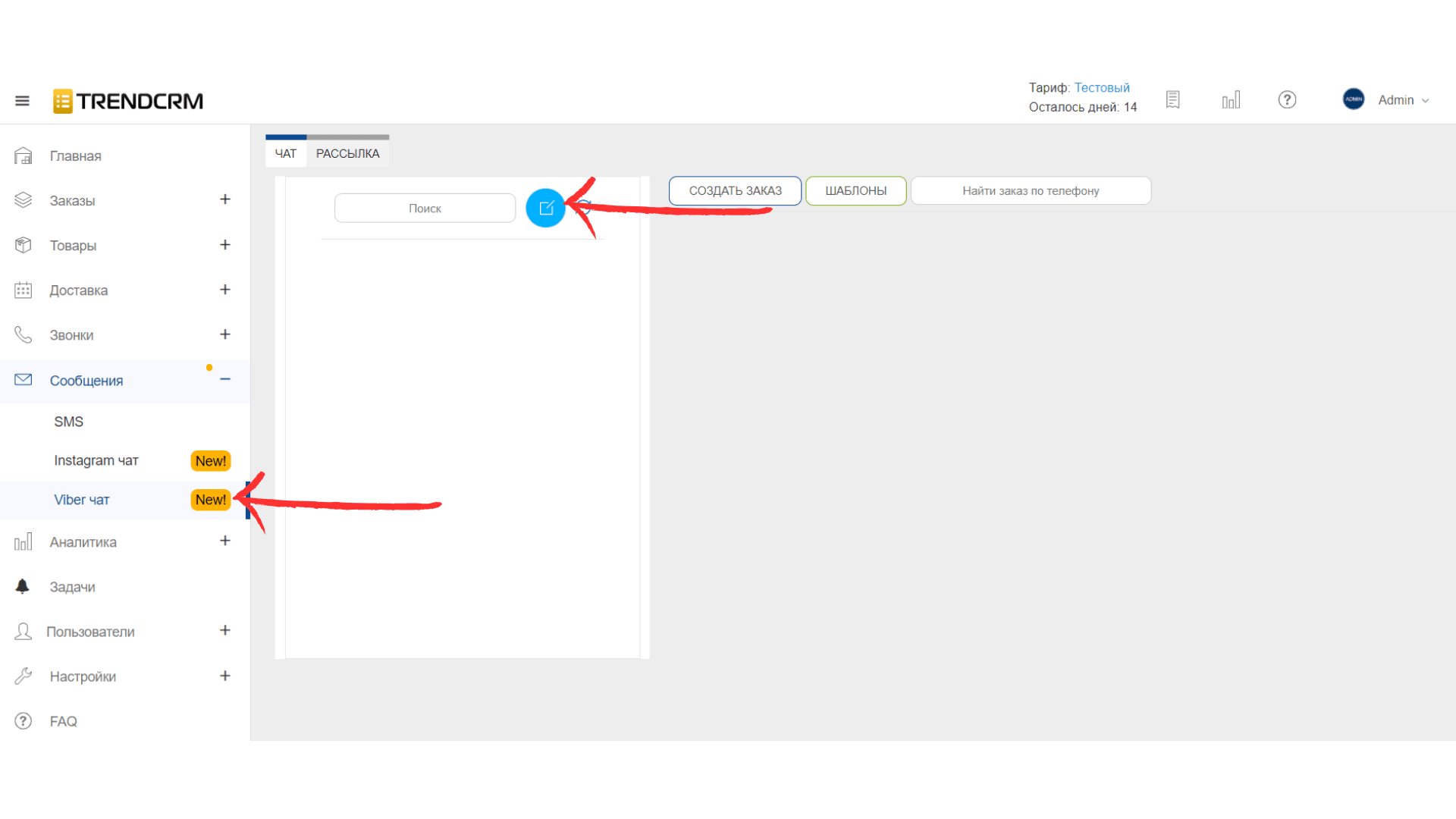
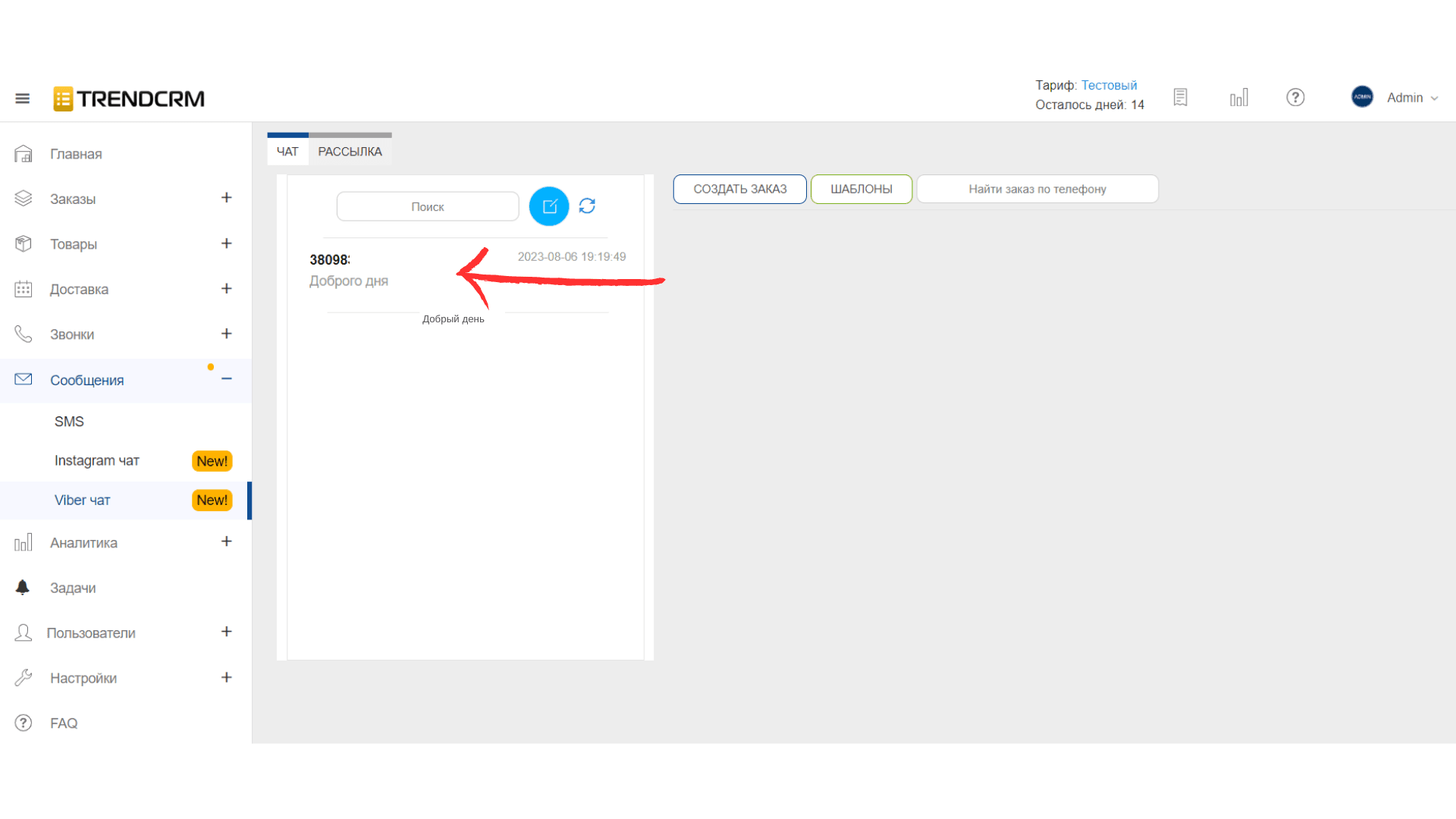
- Open “Messages” - select “Viber chat” and click “Create” button
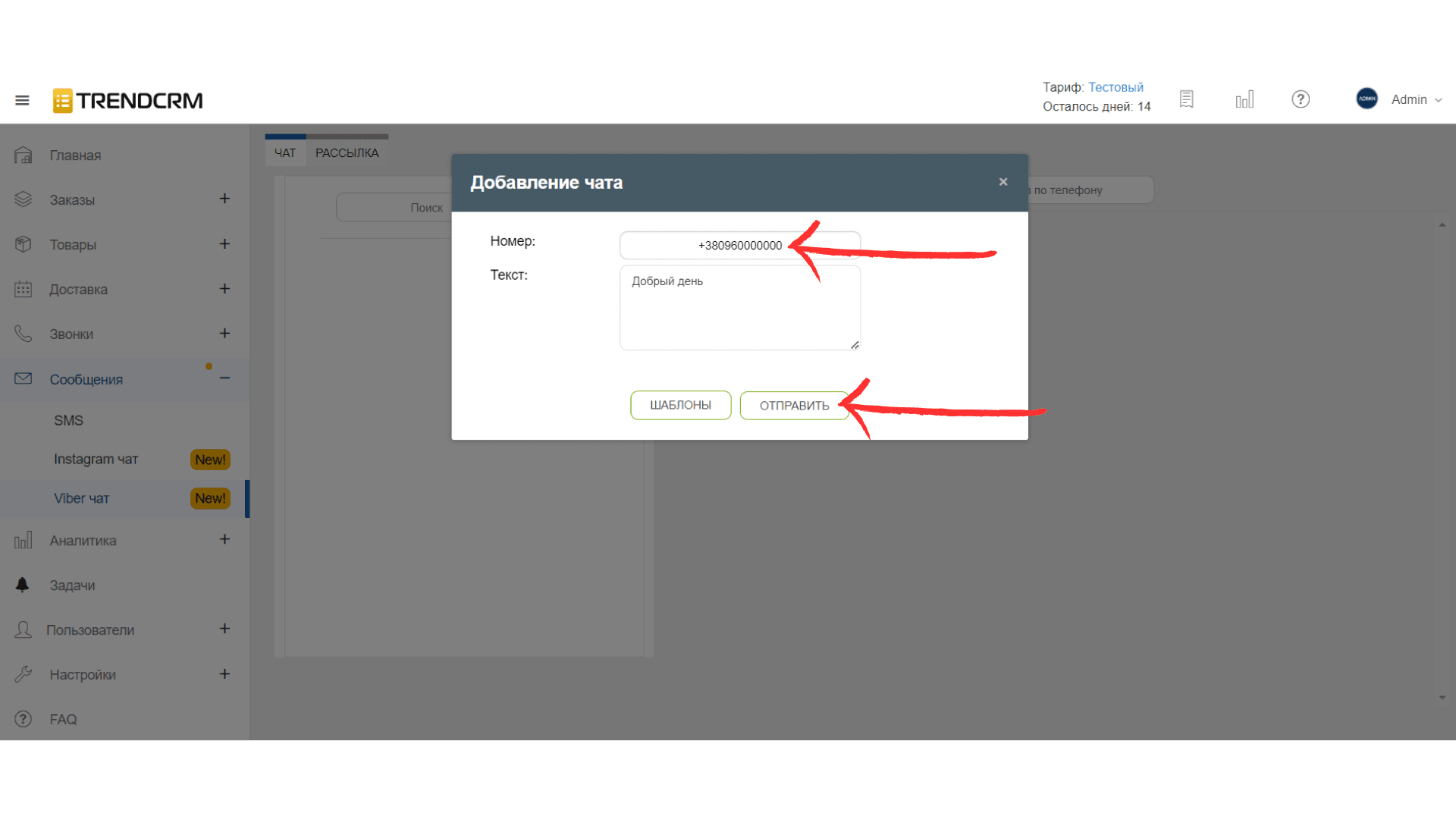
- In the window that opens, enter the number to which you will send messages, the text of the message and click “Send”
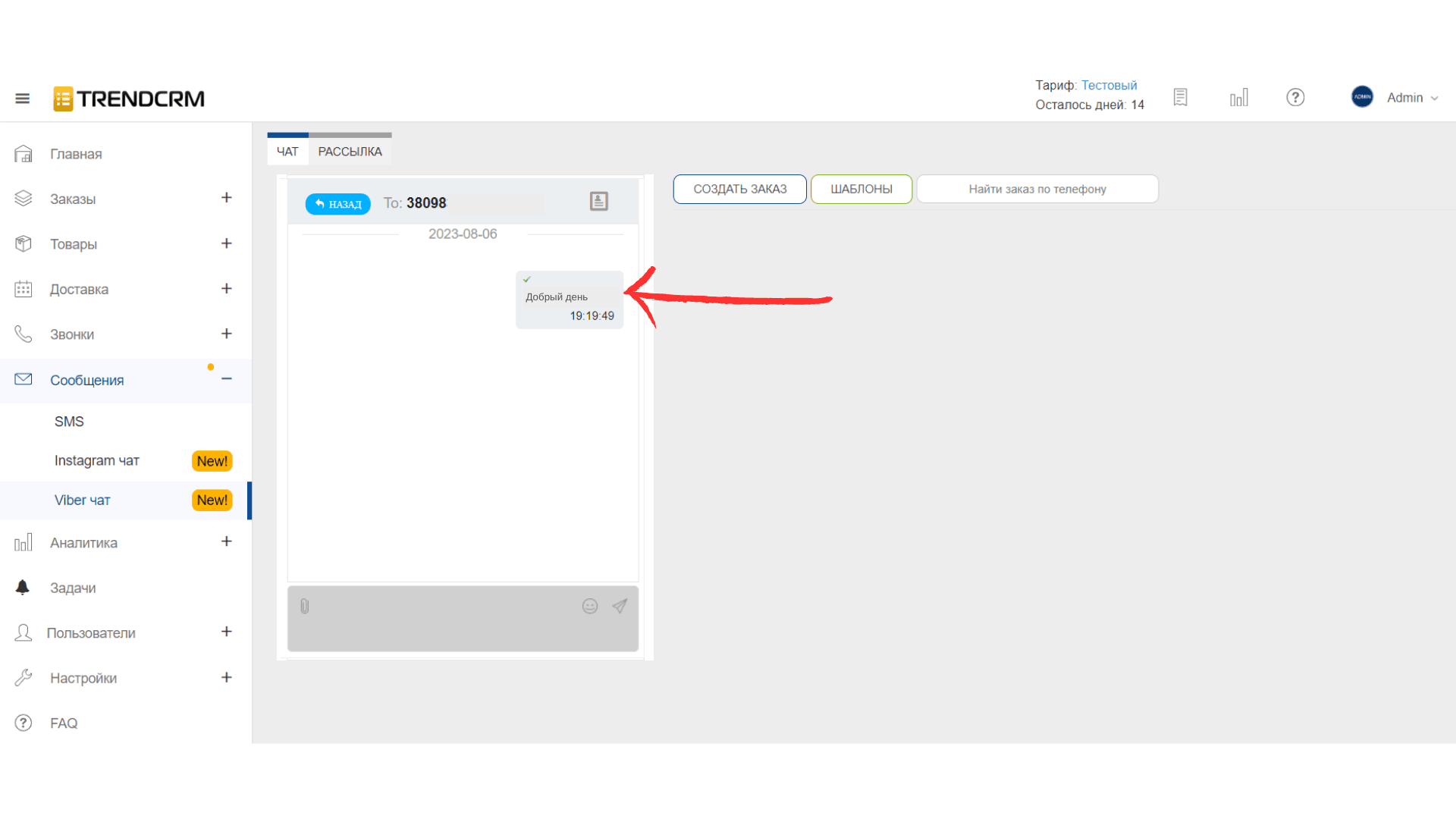
To see all correspondence with this contact, just click on the first message in the list or find the contact by number and click - you will see all correspondence with this contact.
Congratulations! Your first message has been sent to a customer.
The main thing!
You can only add an active number
Trendcrm will display all incoming and outgoing messages to your number when communicating within the Trendcrm service or in the Viber app
Be careful when sending your first messages from Viber, as the messenger has restrictions on sending messages, we recommend you to familiarize yourself with the limits for sending messages from Viber.
Was this article helpful?
Share it with colleagues who might need it
Connect messengers to your CRM
Message clients first right from the client card and keep all conversations in your CRM. 7-day free trial, up to 40% off when connecting several numbers.