TradeEVO
Setting Up the TradeEVO Integration Channel
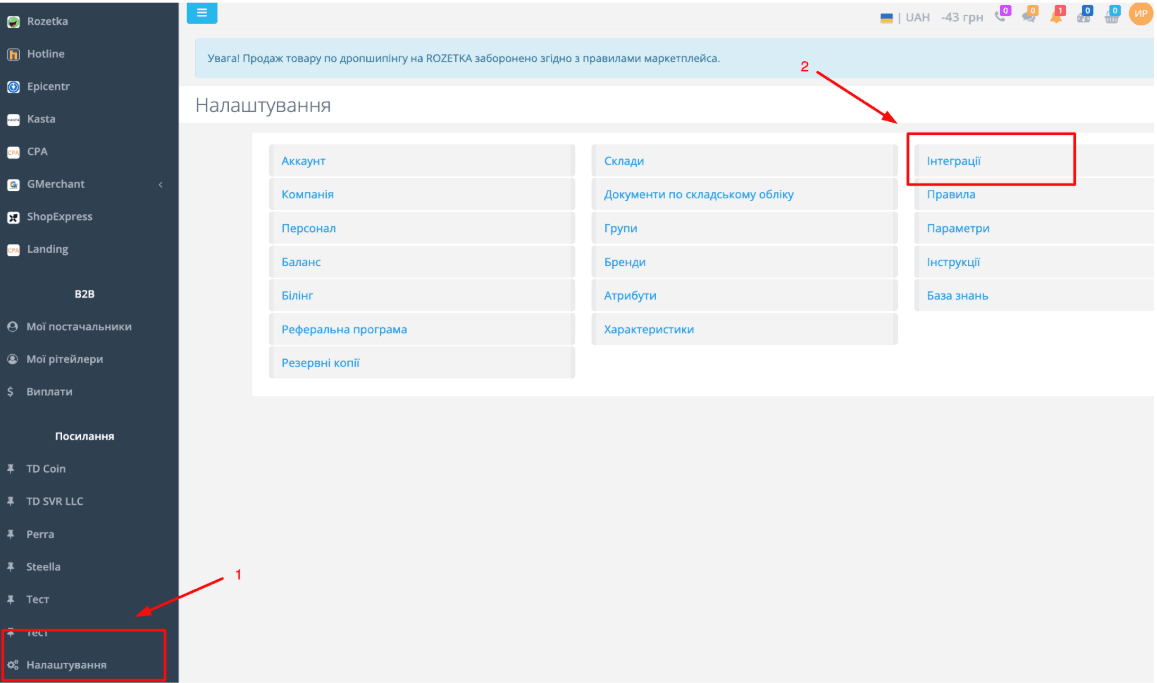
1. Opening the Integrations Section
Sign in to your TradeEVO account:
https://app.tradeevo.com/company/apps
Go to "Settings" and select "Integrations".
2. Adding E-Chat
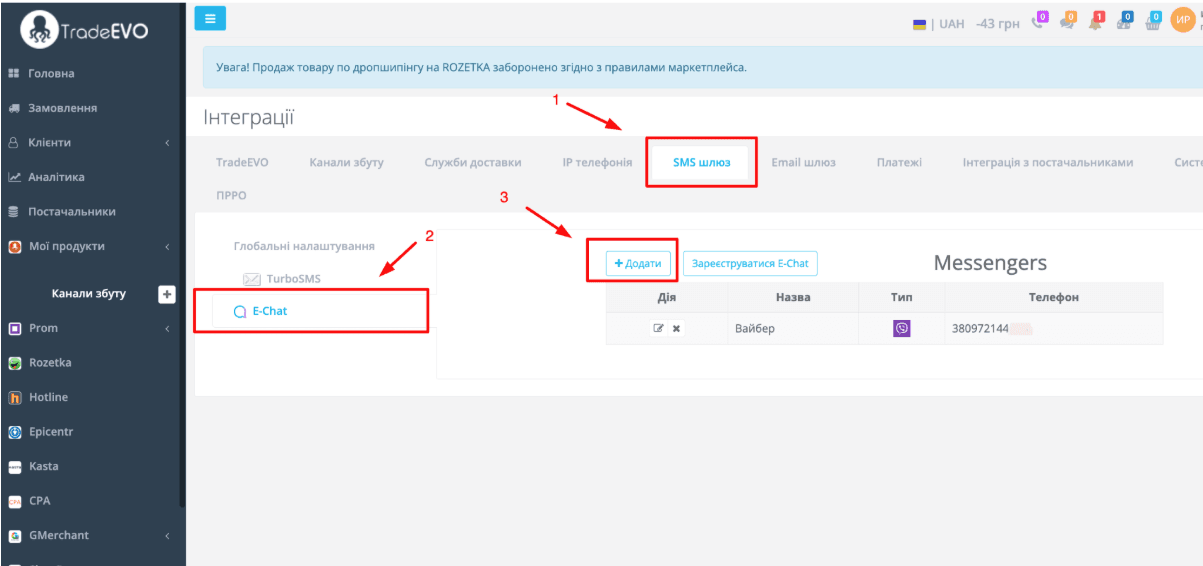
Select "SMS Gateway" as the integration type.
Select "E-Chat" from the list of available services and click "Add".
3. Selecting a Messenger
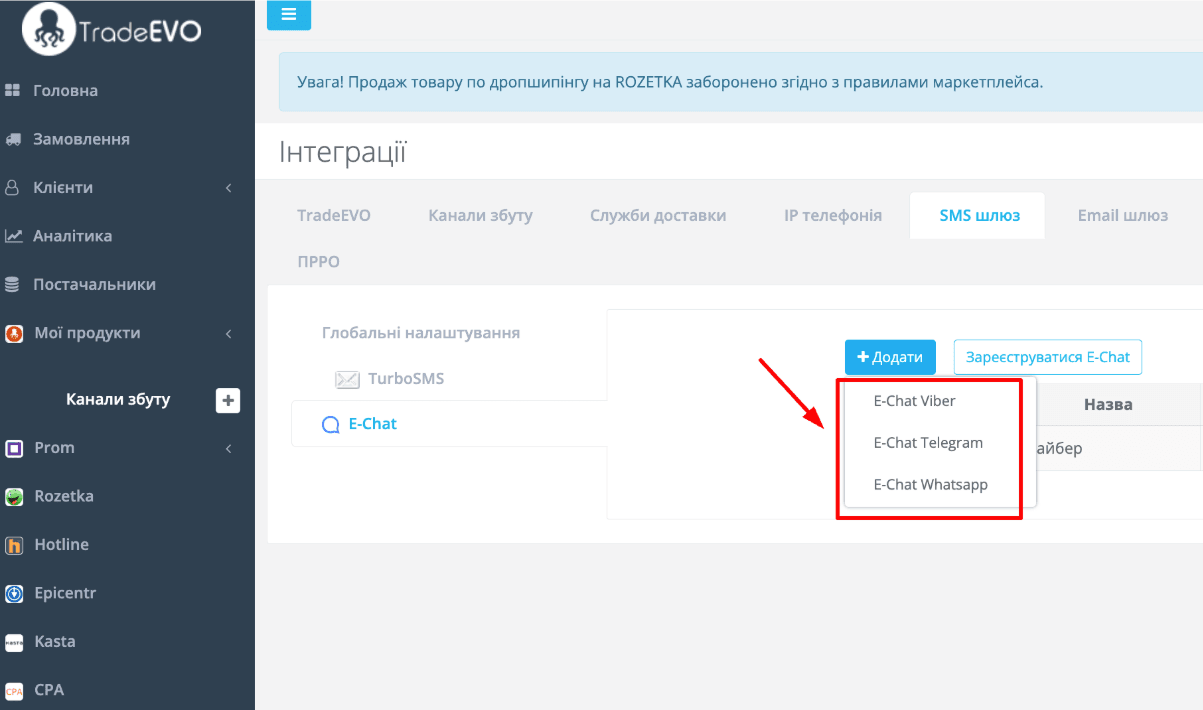
Select the messenger you want to connect:
- E-Chat Viber;
- E-Chat Telegram;
- E-Chat WhatsApp.
4. Completing the Settings
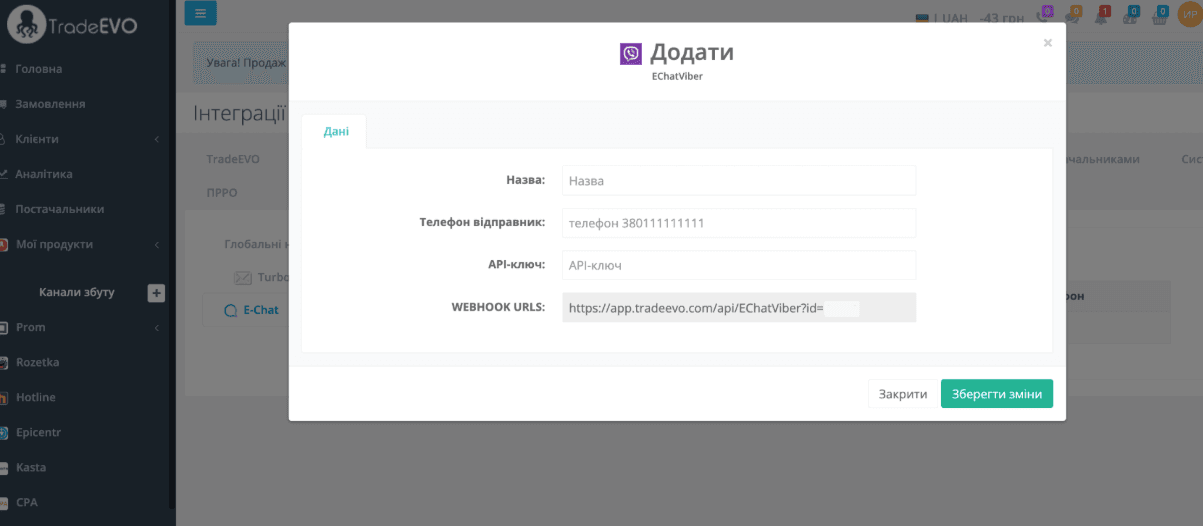
Complete the required fields:
- Name - enter any convenient name. It will help you distinguish between connected channels.
- Sender phone number - enter the phone number of the account you want to connect.
- API key - enter the API key copied from your E-Chat account settings.
After completing the fields, click "Save Changes".
Sending Messages
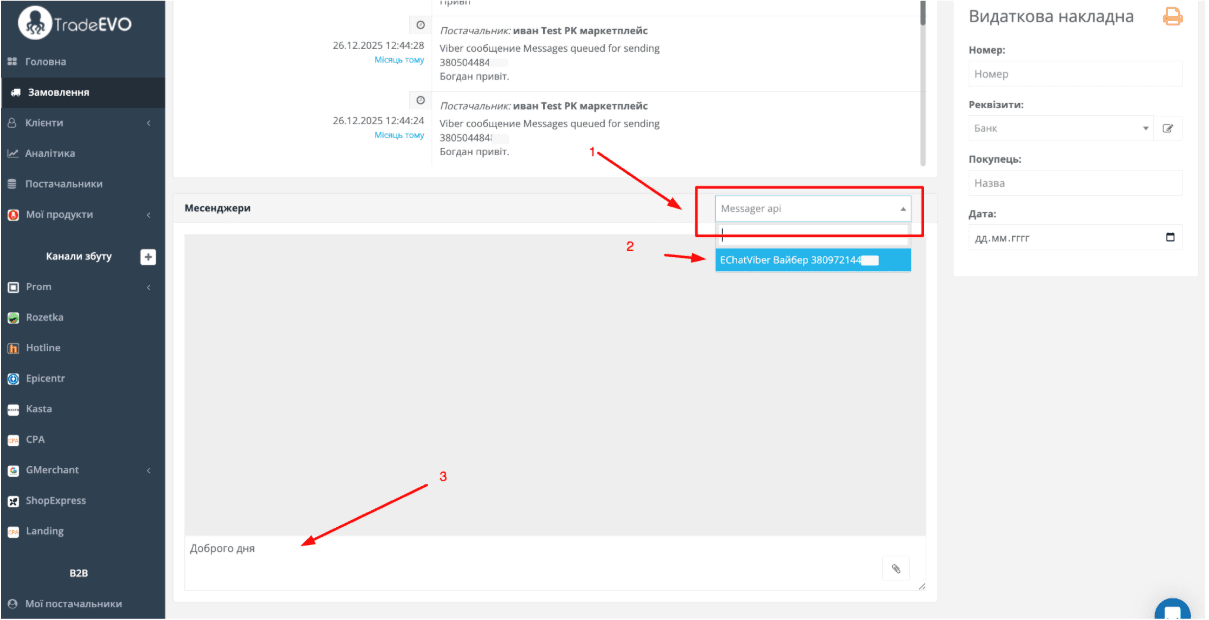
1. Sending a Message from an Order
Open the required order.
In the messengers section, select the channel and phone number you want to use to send the message.
Enter the message text and send it.
2. New Message Notification
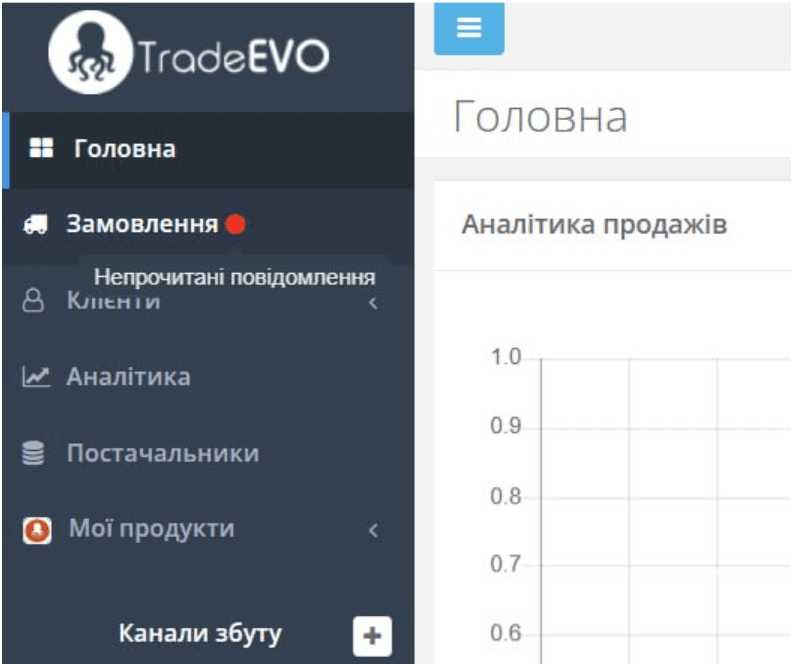
If there are unread messages in the system, a red dot will appear next to the "Orders" section
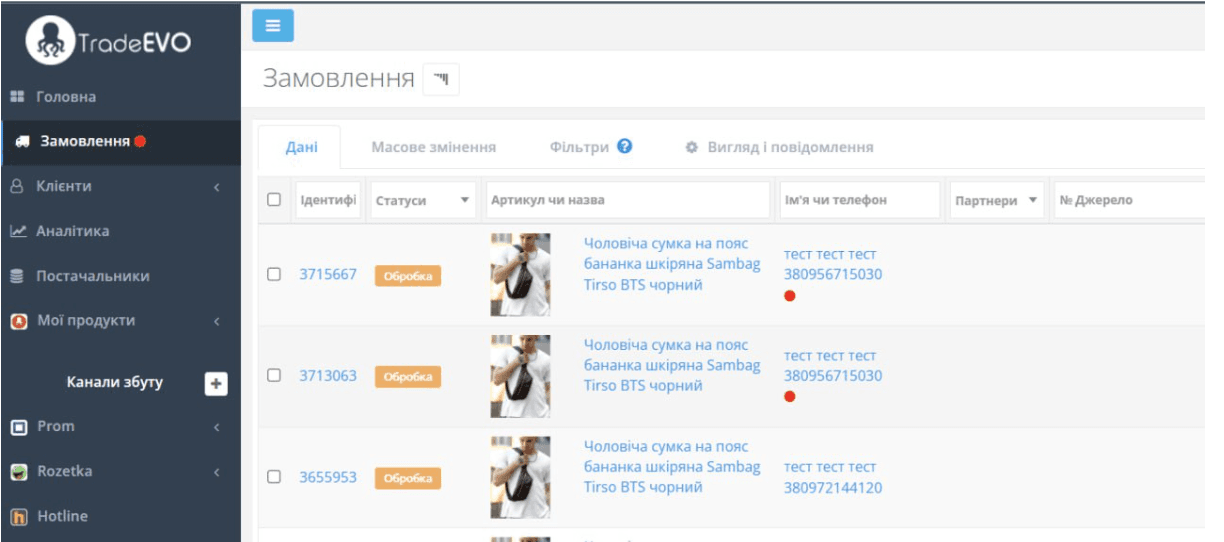
3. Finding an Order with an Unread Message
Orders containing unread messages are also marked with a red dot.
This allows you to quickly identify the order containing the new message.
Was this article helpful?
Share it with colleagues who might need it
Connect messengers to your CRM
Message clients first right from the client card and keep all conversations in your CRM. 7-day free trial, up to 40% off when connecting several numbers.