Servio
E-Chat Setup
1. Obtaining the Public HMS Service Address
The first step is to obtain a public address for HMS Service. This can be done in one of the following ways:
- through Cloudflare. Depending on where the server is hosted, you will need to contact either our system administrator or the client's system administrator;
- by opening the required port on the router.
Note: the local service address is stored in the appsettings.json file.
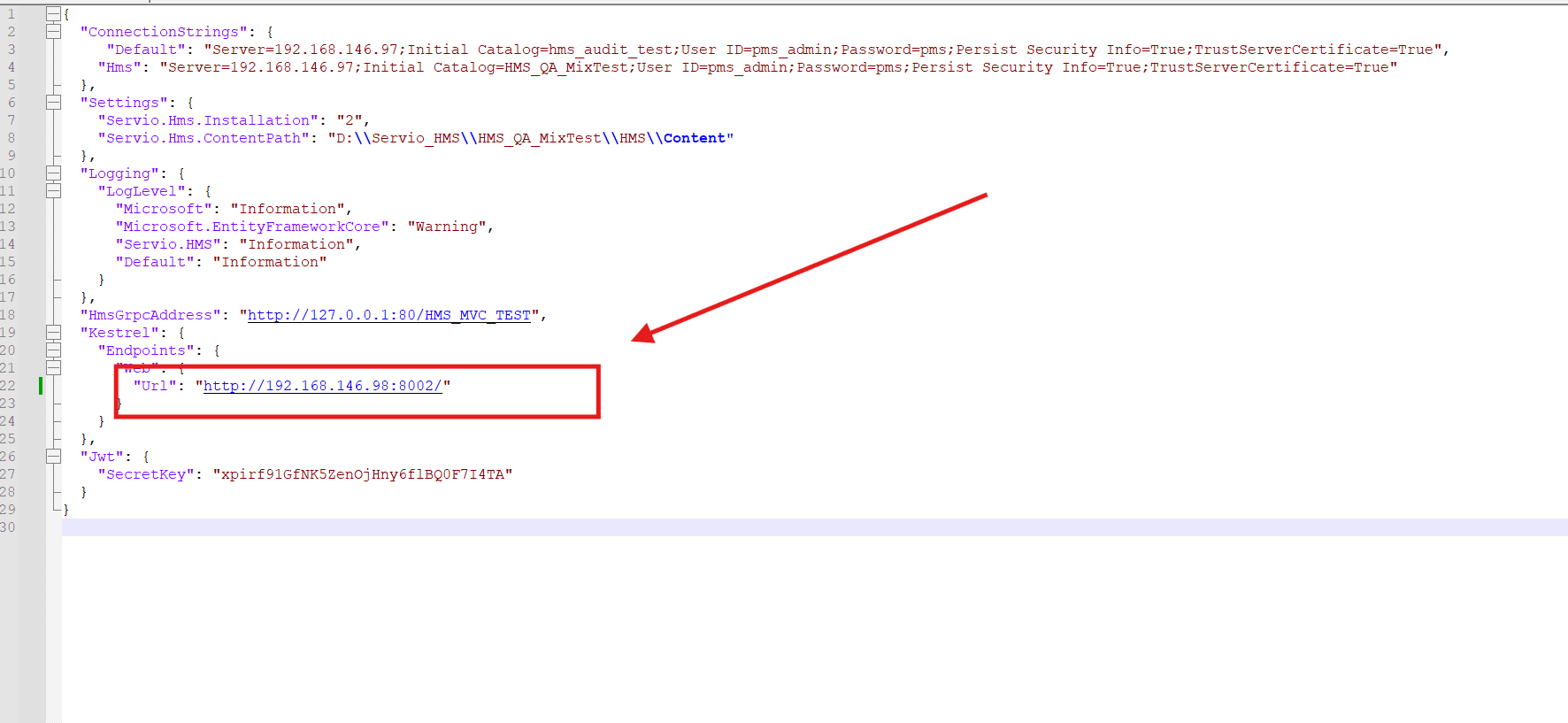
2. Checking Webhook Availability
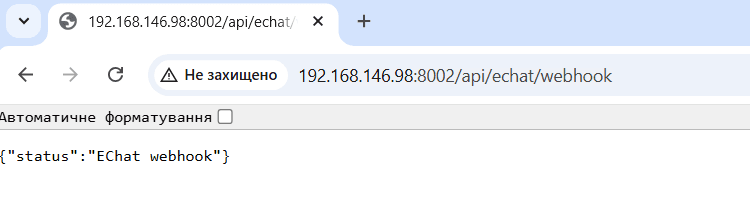
After obtaining the public address, you need to verify that it is accessible.
Open a browser and go to:
https://your_public_address/api/echat/webhook
If the browser returns a JSON response, the service is working correctly.
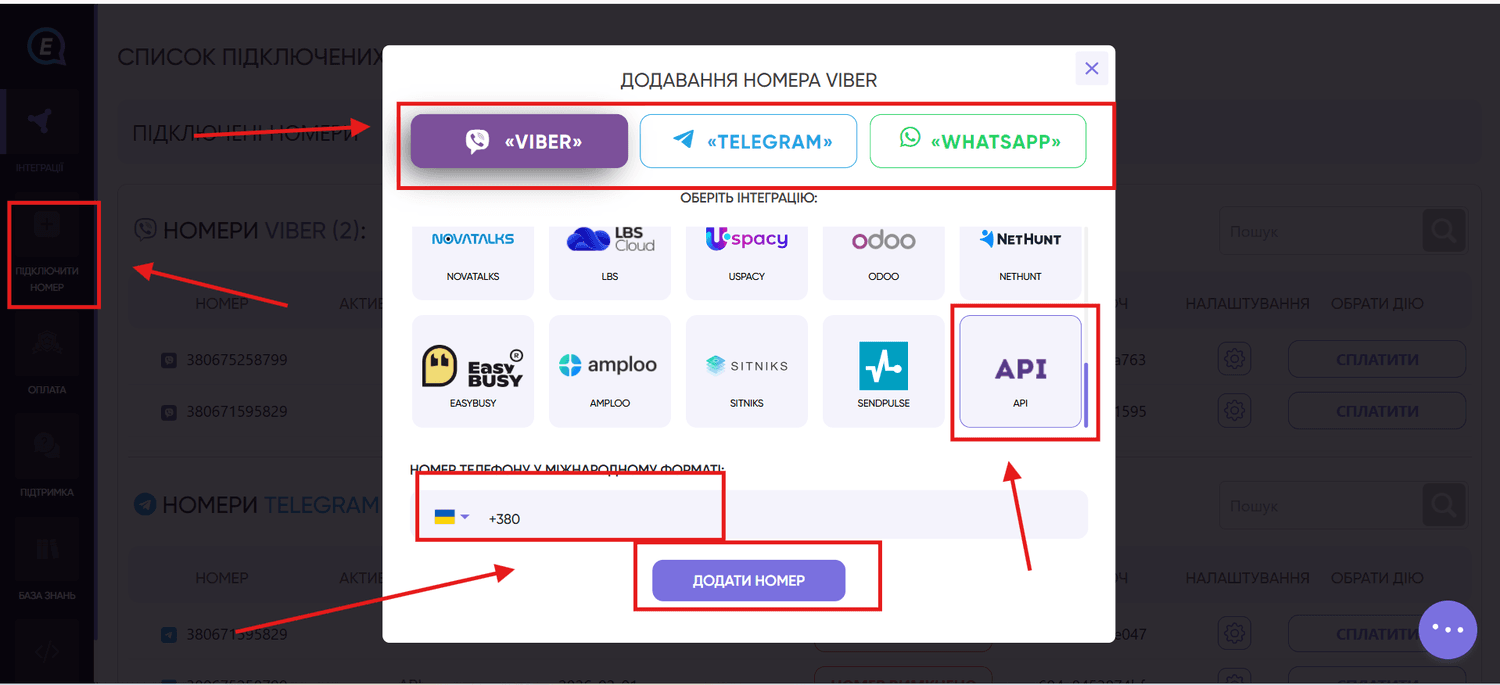
3. Configuring Webhooks in the E-Chat Account
- Sign in to your E-Chat account.
- Click "Connect Number".
- Enter the phone number.
- Select the required messenger and choose the "API" integration.
- Click "Add Number".
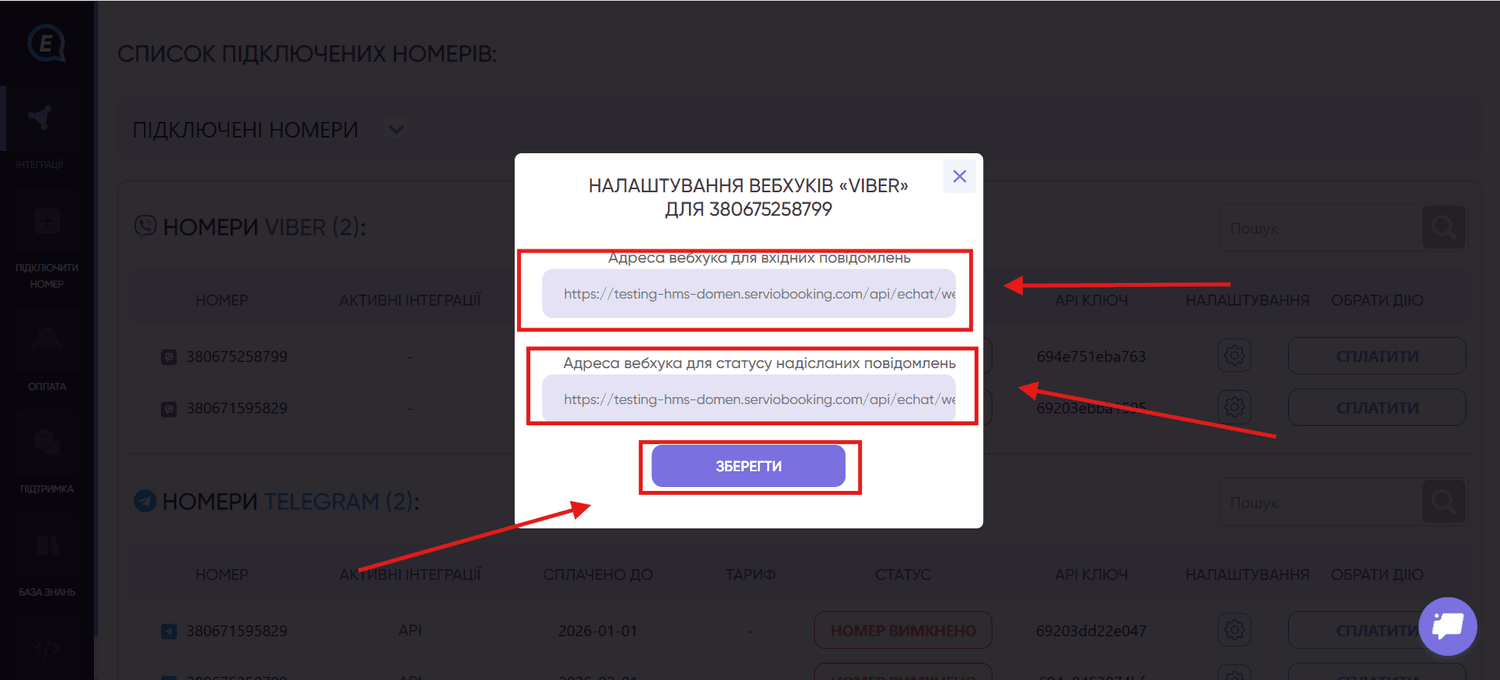
After adding the number, open the "Integrations" tab and go to the Webhook settings.
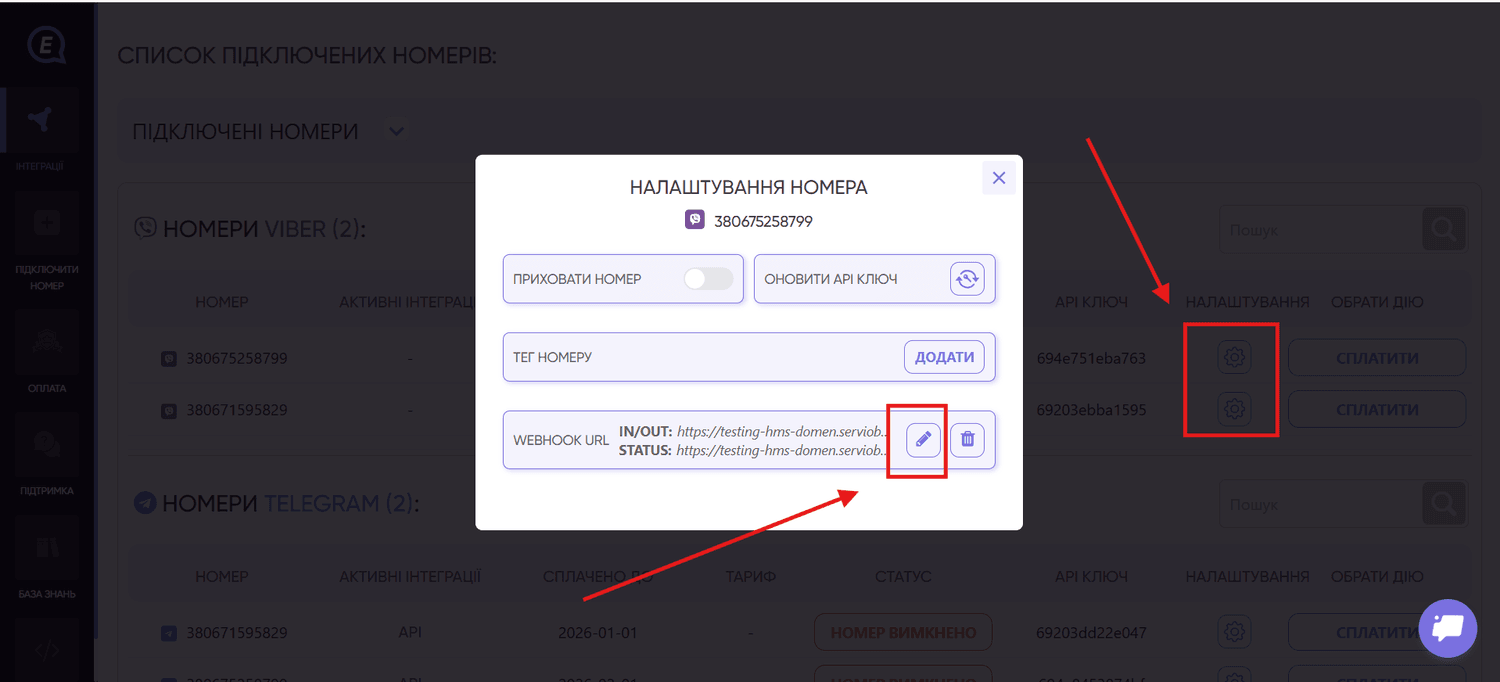
Complete the fields as follows:
INCOMING: webhook URL for incoming messages
https://your_public_address/api/echat/webhook/incoming
OUTGOING: webhook URL for sent message status updates
https://your_public_address/api/echat/webhook/outgoing-status
4. Configuring HMS
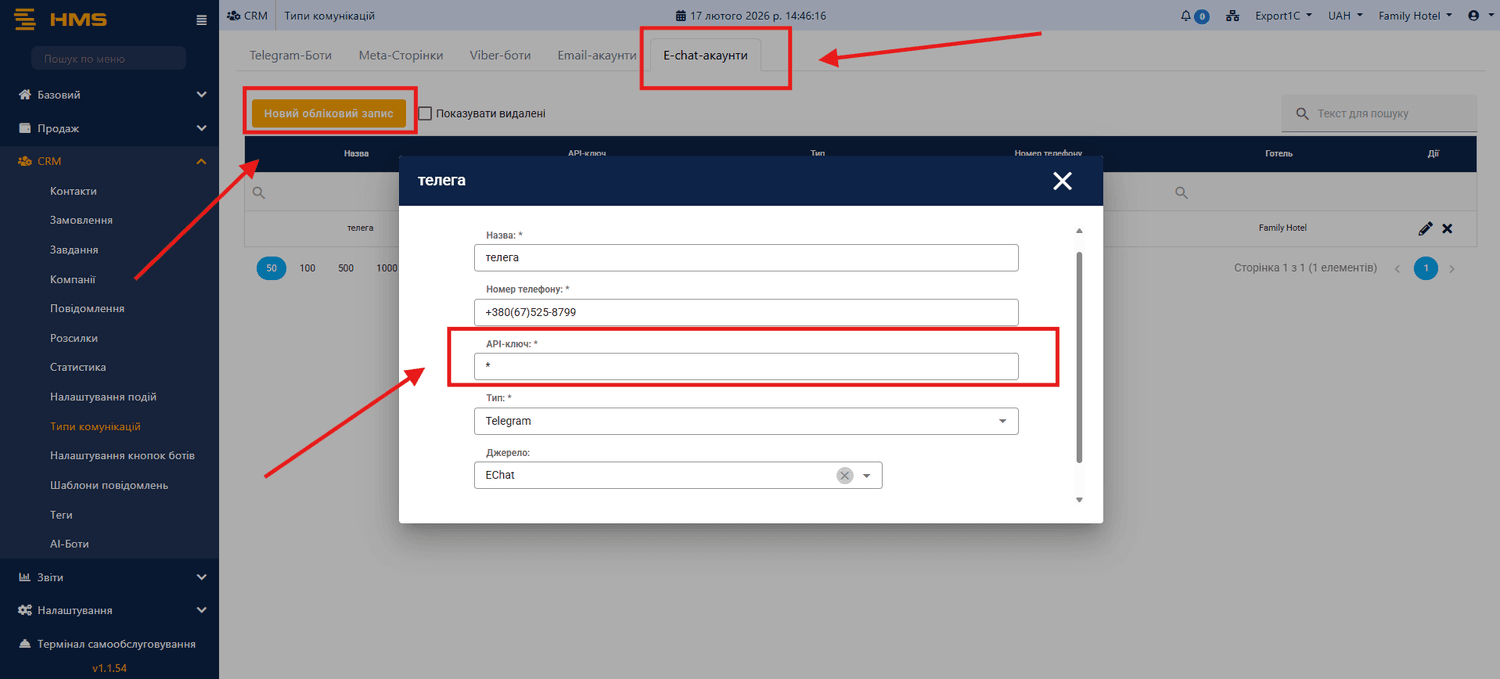
Sign in to HMS and go to:
CRM -> Communication Types -> E-Chat Accounts
Click "Add" and complete the required fields.
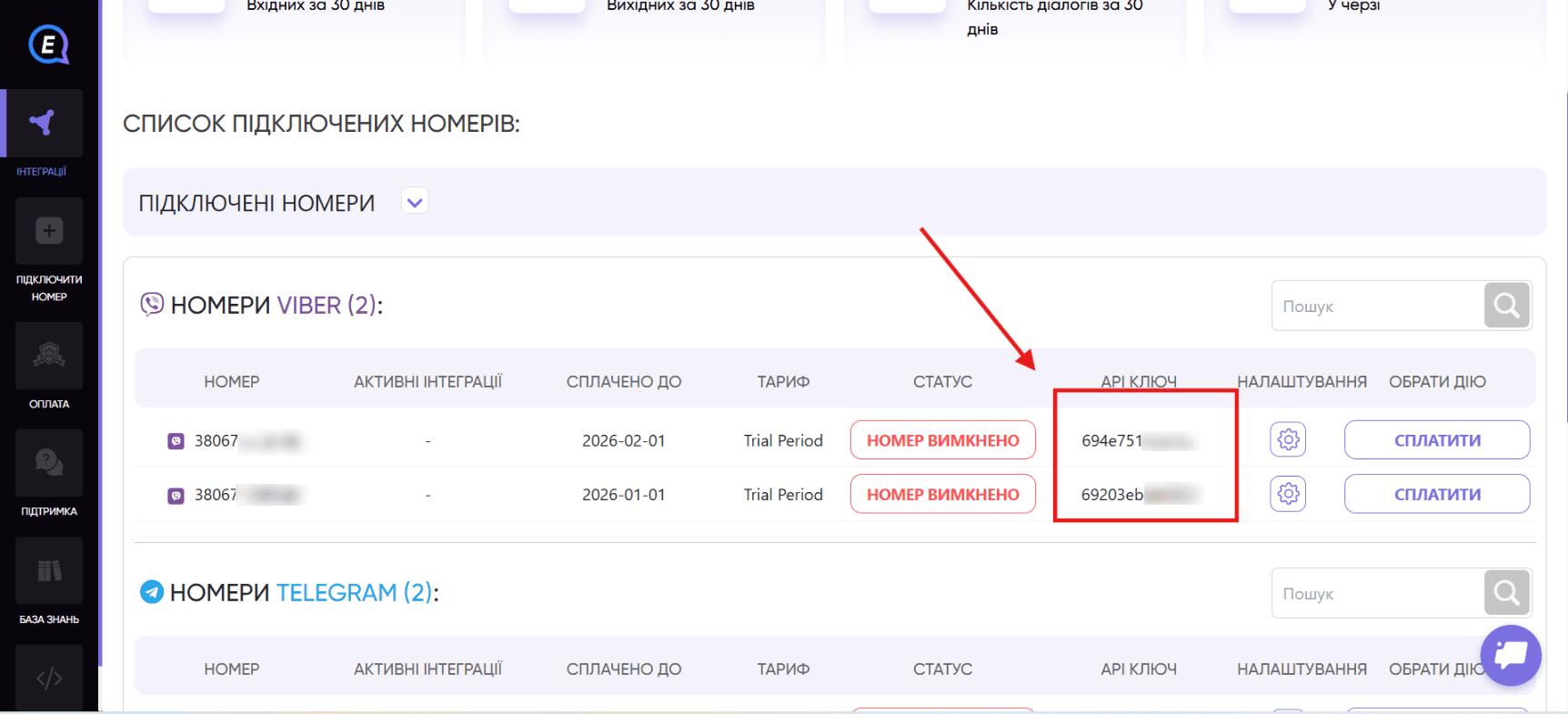
In the "API Key" field, enter the corresponding key from your E-Chat account.
Save the record.
5. Testing the Integration
After successfully adding the account:
- Send a test message.
- Make sure the message is processed correctly by the system.
If the message is sent successfully and appears in the system, the setup has been completed correctly.
Was this article helpful?
Share it with colleagues who might need it
Connect messengers to your CRM
Message clients first right from the client card and keep all conversations in your CRM. 7-day free trial, up to 40% off when connecting several numbers.