SendPulse
- Sign in to your SendPulse account.
- Go to the App Directory and install the Viber Chat app.
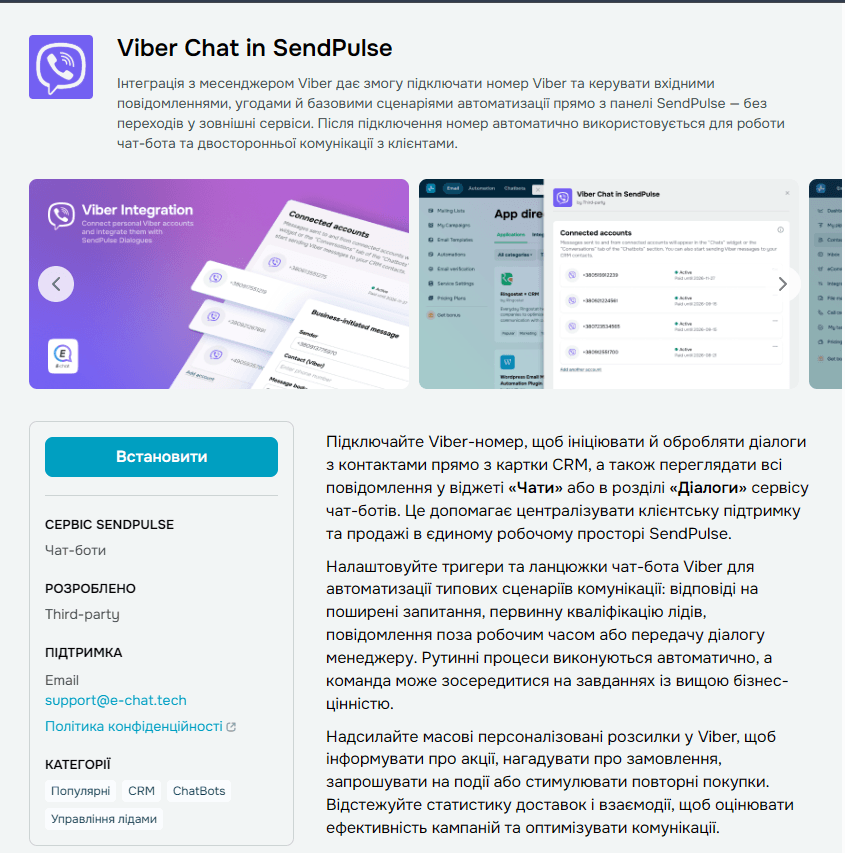
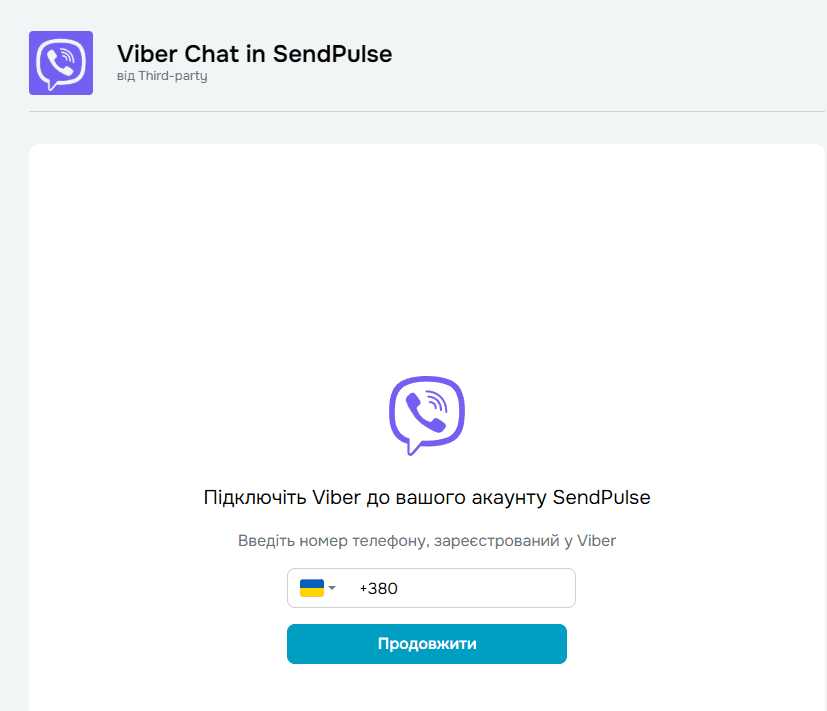
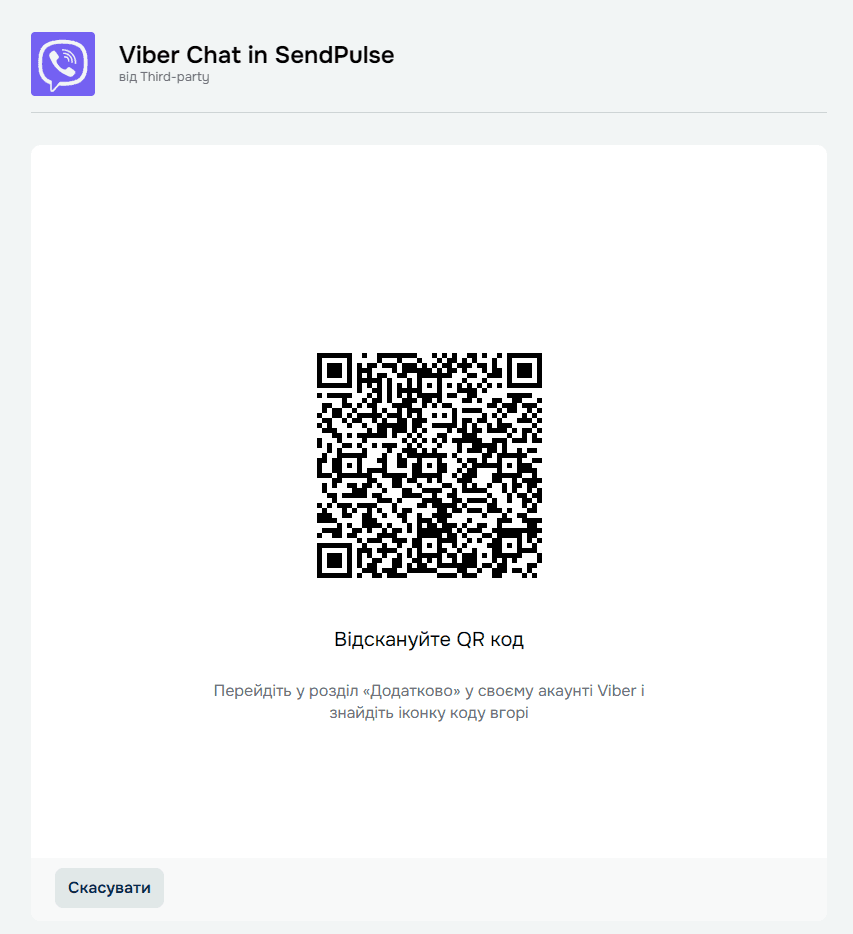
3. After installing the app, enter the phone number of the account you want to connect and scan the QR code to activate it.
4. In the integration settings, purchase the appropriate E-Chat plan.
5. Click Agree to grant the required permissions.
After the E-Chat plan has been purchased, the Viber account will be connected automatically.
The phone number and integration status will be displayed in the system.
After Connecting the Account
Once the account has been successfully connected, you can:
- send and receive Viber messages in SendPulse;
- manage conversations in the CRM;
- launch chatbots.
All messages will be available in the Chats and Dialogs sections.
Was this article helpful?
Share it with colleagues who might need it
Connect messengers to your CRM
Message clients first right from the client card and keep all conversations in your CRM. 7-day free trial, up to 40% off when connecting several numbers.