Perfectum
Connecting Telegram number to Perfectum
To configure the integration, you need to go to the following section: "Settings - Configuration - Applications - Viber number"
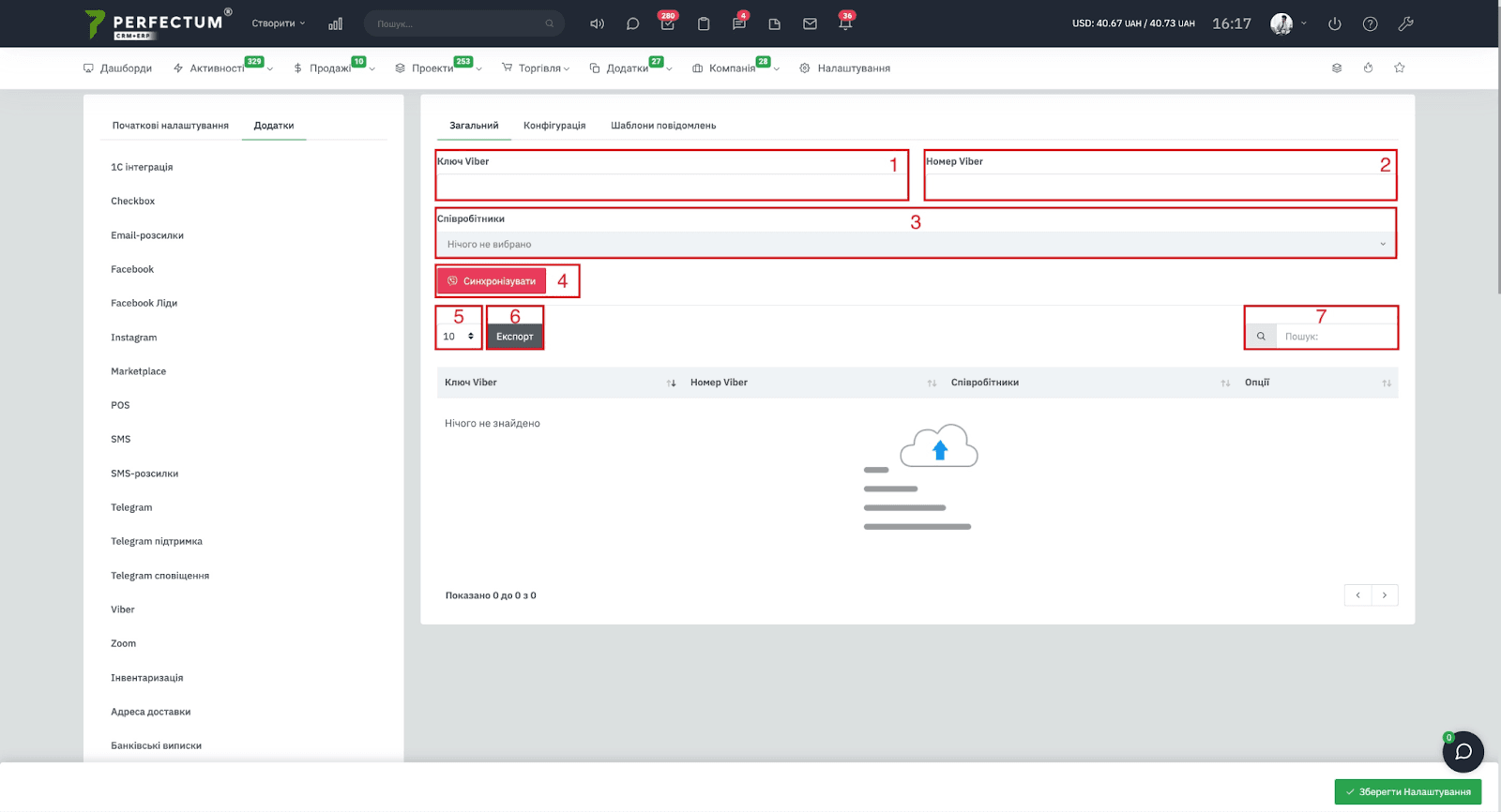
The General tab and its capabilities:
- Viber key - field to insert the key.
- Viber number - a field to insert a number.
- Employees field - allows you to select employees who need to be granted access to Numbered Viber.
- The "Synchronize" button - click after completing steps 1-3.
- Field for displaying the number of records on the page (10,25,50...).
- The "Export" button - to export the Viber numbering table.
- The "Search" column is used to search for synchronized Viber numbers by keywords.
The Configuration tab and its capabilities:
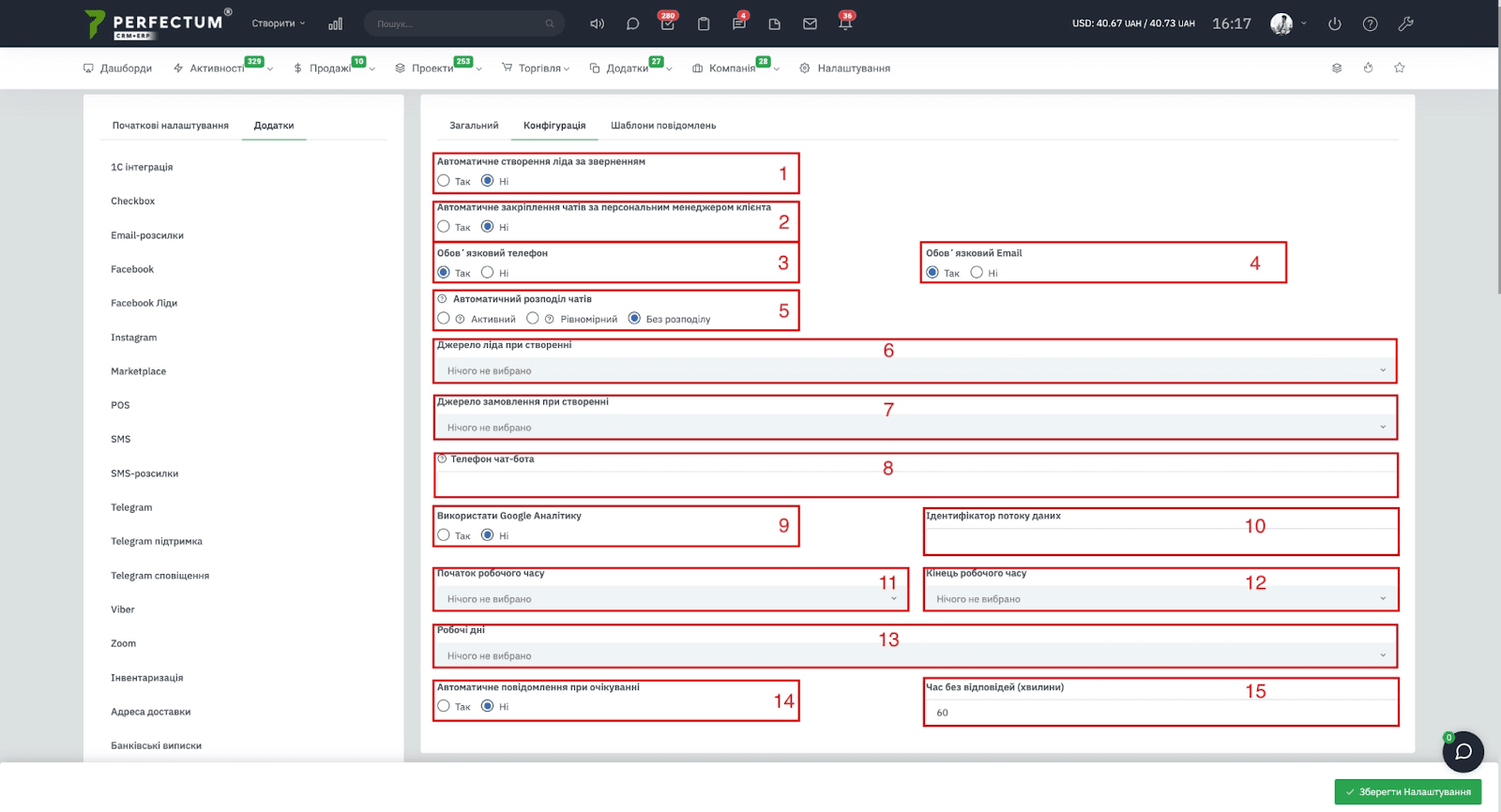
- Automatic creation of a lead by request - yes/no. (each new chat will create a lead in the system).
- Automatic assignment of chats to a personal client manager - yes/no. (if you select "yes" and a client who has the same phone number or email as the client in the system writes to the chat, then a personal client manager will be assigned to this chat).
- Mandatory phone number - yes/no. (Before the client can write a request, the system will automatically ask for his phone number and indicate it in the chat).
- Mandatory email - yes/no. (before the customer can write a request, the system will automatically ask for their email address and indicate it in the chat).
- Automatic chat distribution - allows you to distribute chats between employees by parameters:
Active - the distribution goes to employees who are currently in the system (online). If there are no employees online at the moment, then the distribution is evenly distributed.
Uniform - the distribution goes to each employee evenly. (For example, 2 employees are online now and customers have written 10 chats, then 5 chats will be assigned to each employee). - Lead source when creating - select from the list.
- Source of the order when creating - select from the list.
- Chatbot phone number - enter the phone number required to generate a link in the Consultant.
- Use Google Analytics - yes/no
- Data stream ID - when using Google Analytics, enter the data stream ID in this field.
- Start of working hours - select the start time.
- End of working hours - select a time from the list.
- Working days - select from the list.
- Automatic notification when waiting - yes/no.
- Unanswered time (minutes) - specify the time without a response after which an automatic message will be sent to the client.
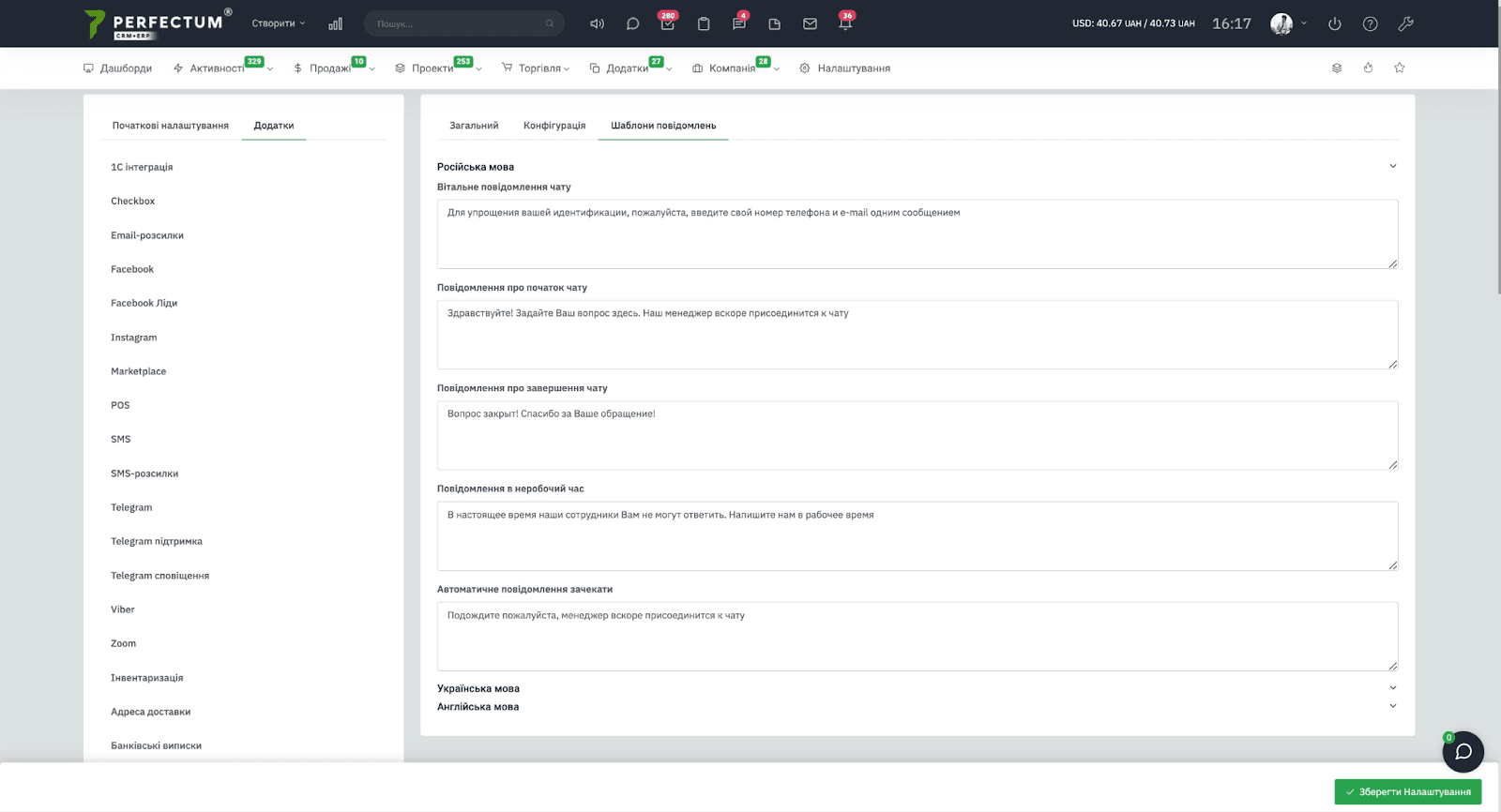
The Message templates tab and its features:
In this tab, you can customize the text of automatic messages in different languages to suit your needs.
Was this article helpful?
Share it with colleagues who might need it
Connect messengers to your CRM
Message clients first right from the client card and keep all conversations in your CRM. 7-day free trial, up to 40% off when connecting several numbers.