LBS Cloud
1) Go to the "Messengers" module in LBS Cloud - "Echat" menu - "Viber Settings".
Copy the webhook URL.
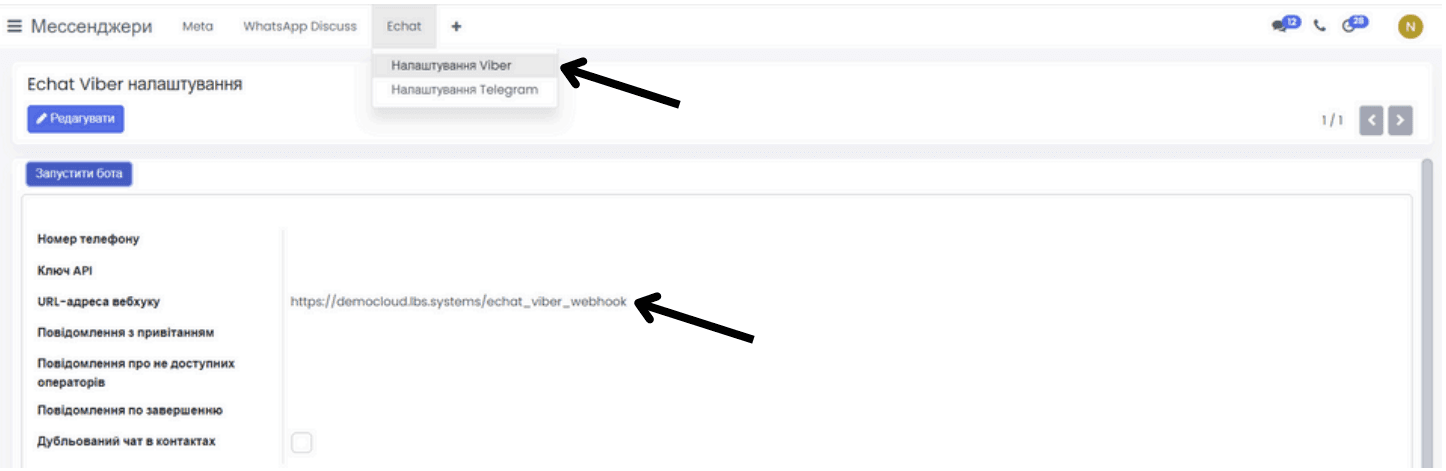
This link must be added to your account in the E-chat personal account.
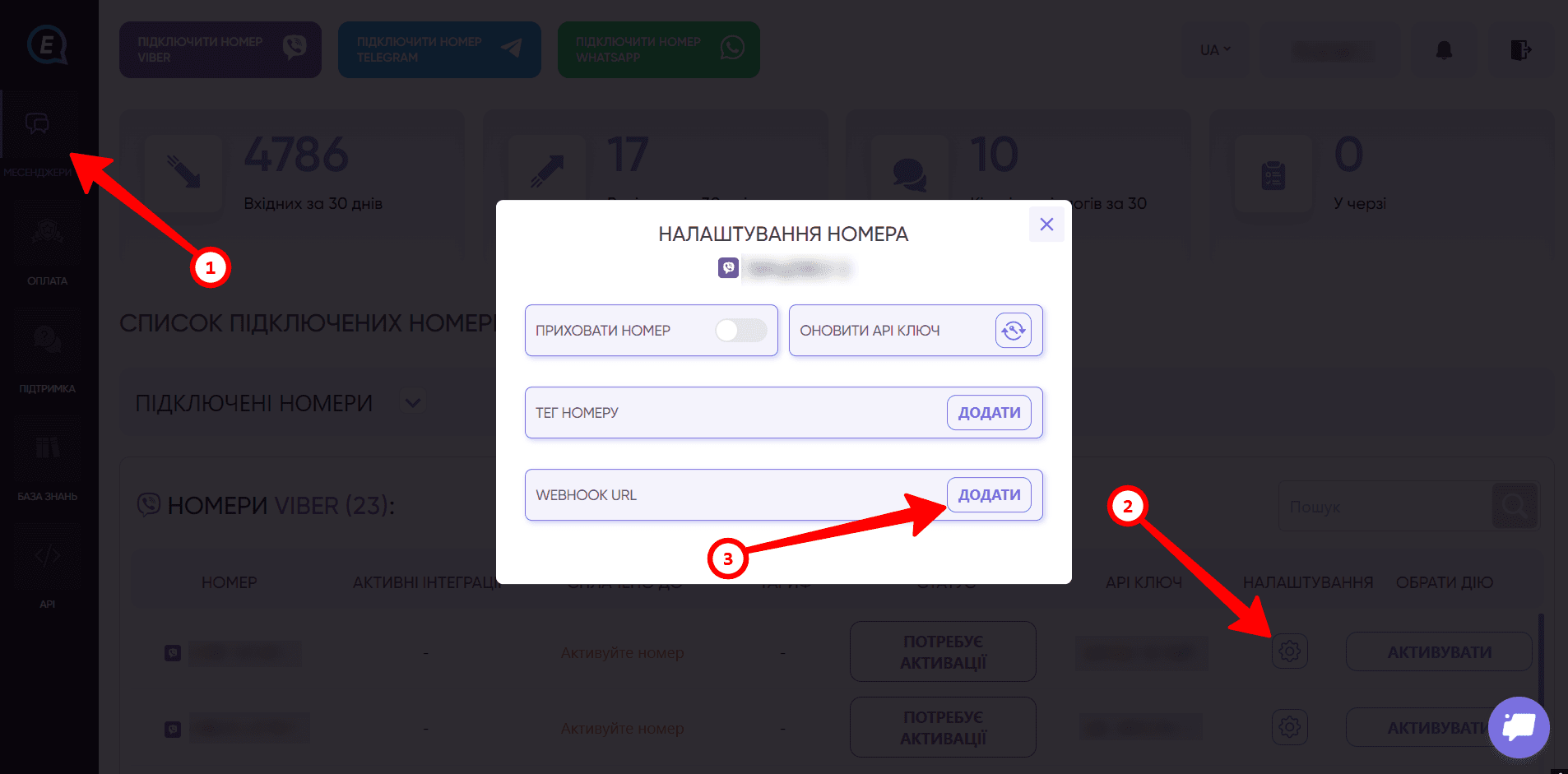
You can do this in the messengers section.
Click the gear icon next to your account and select the "Webhooks" section from the additional menu.
Paste the URL into both fields and add it.
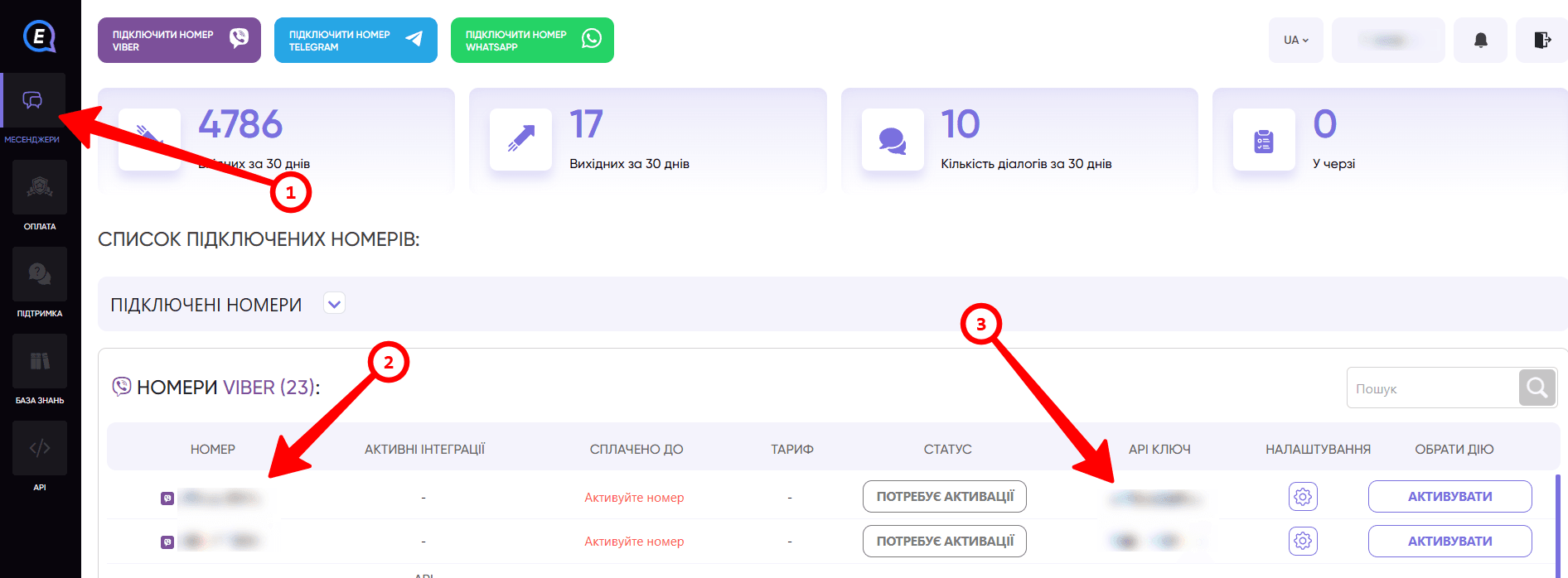
Go to the "Messengers" tab and copy the phone number and API key.
Paste the phone number and API key into the corresponding fields in LBS Cloud.
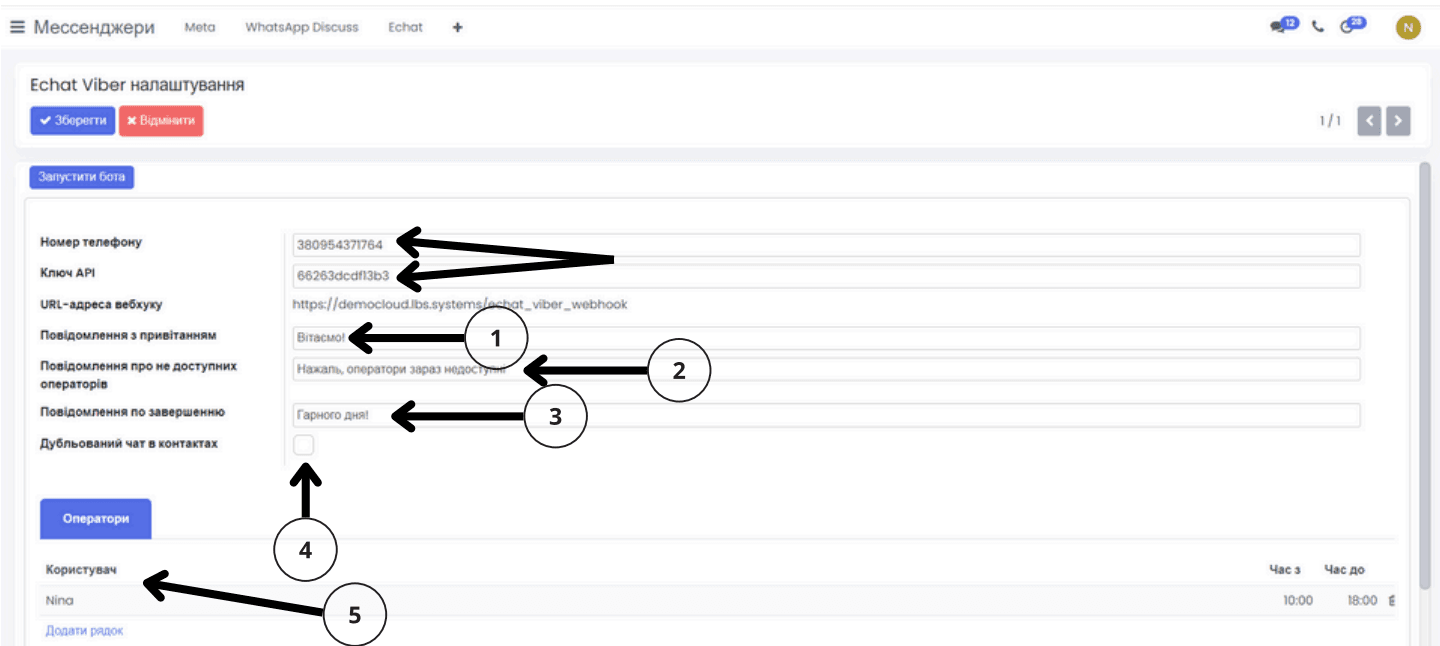
Next, enter all the necessary information:
- Welcome message.
- Message about unavailable operators.
- Conversation completion message.
- If necessary, activate "Duplicate chat in contacts".
- Add an operator and working hours.
- Paste the phone number and API key into the corresponding fields in LBS Cloud.
Save the settings and click "Launch Bot".
Was this article helpful?
Share it with colleagues who might need it
Connect messengers to your CRM
Message clients first right from the client card and keep all conversations in your CRM. 7-day free trial, up to 40% off when connecting several numbers.