Kwizbot (Connective one)
Integration with Kwizbot
Connection to the Kwizbot system is performed by setting up the integration by the technical team.
👉 To do this, provide the API token from your e-chat account.
1. Integration Steps
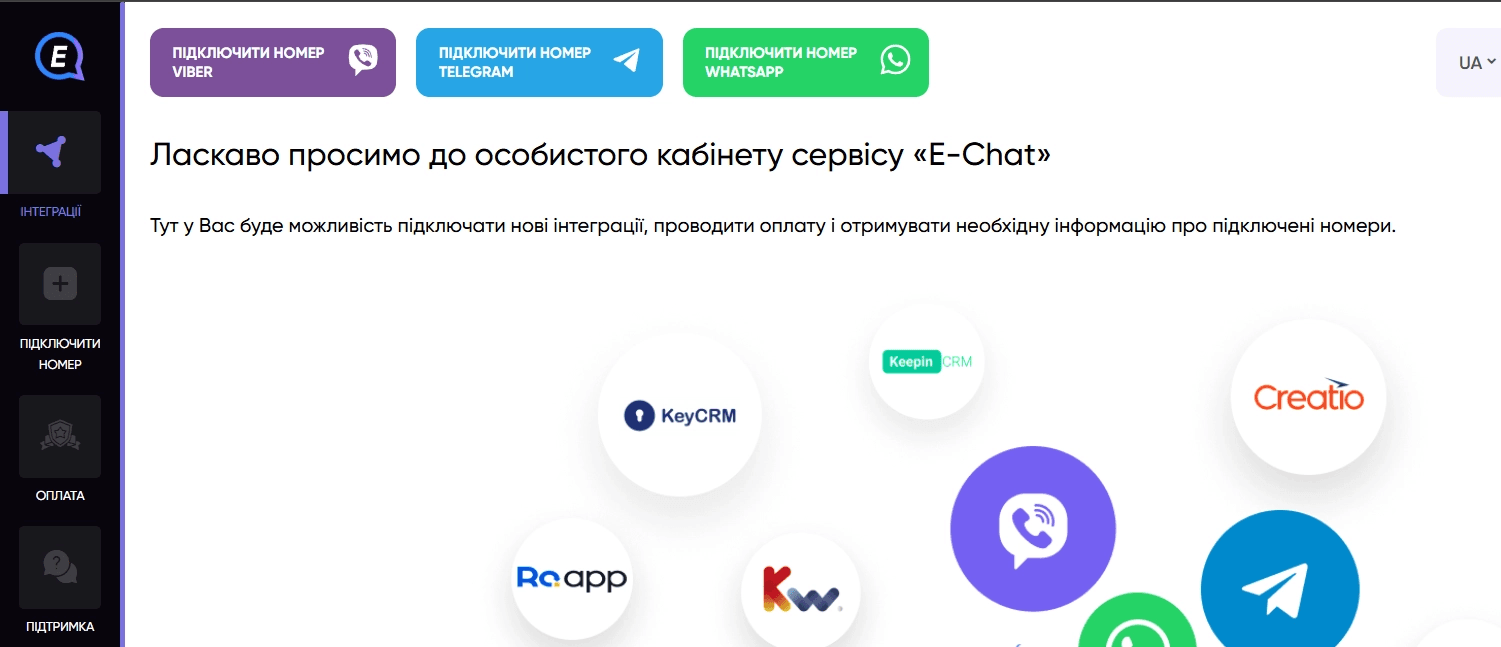
In your e-chat account, click "Connect Telegram Number", "Connect Viber Number", or "Connect WhatsApp Number".
Select Kwizbot from the list of integrations.
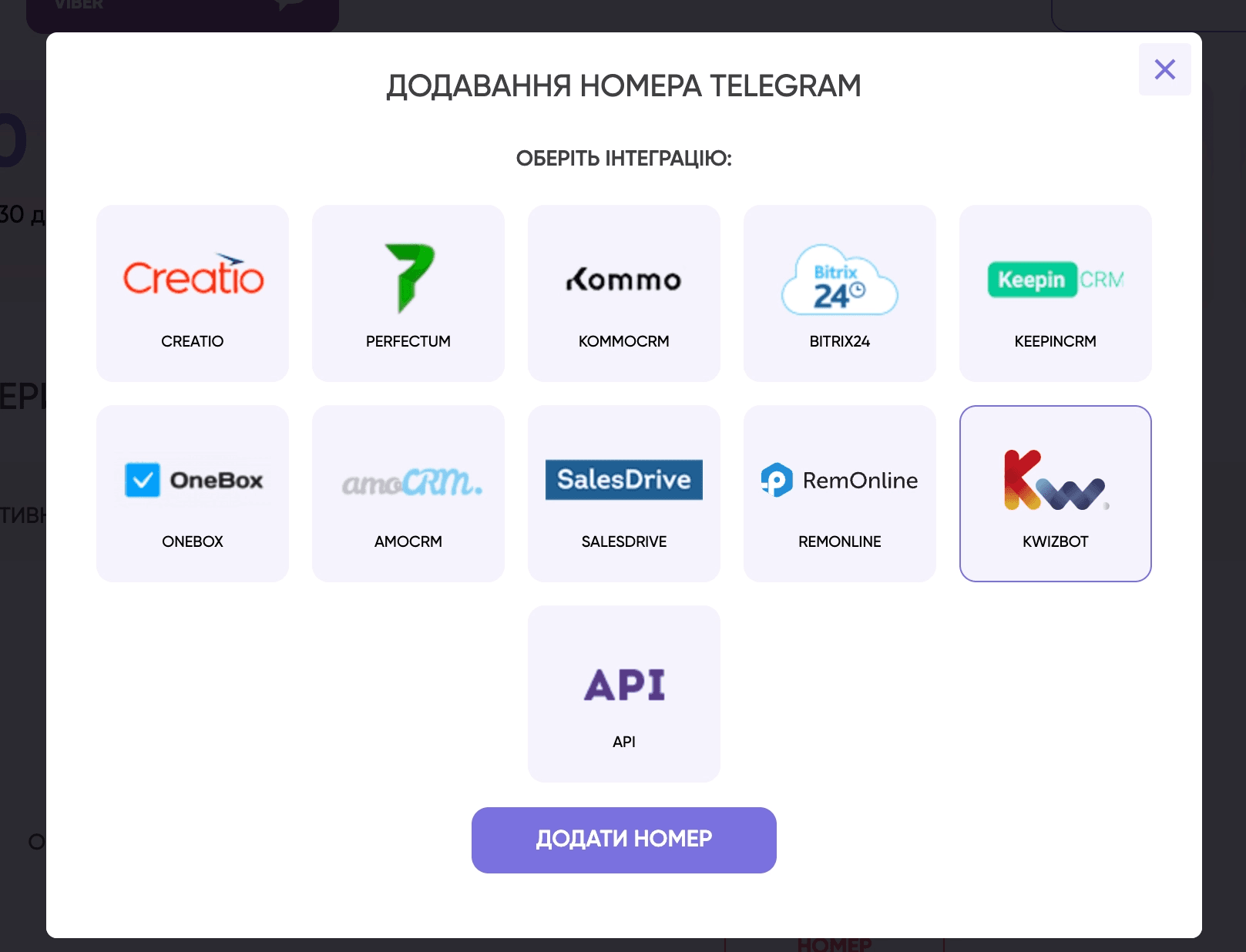
Follow the connection instructions.
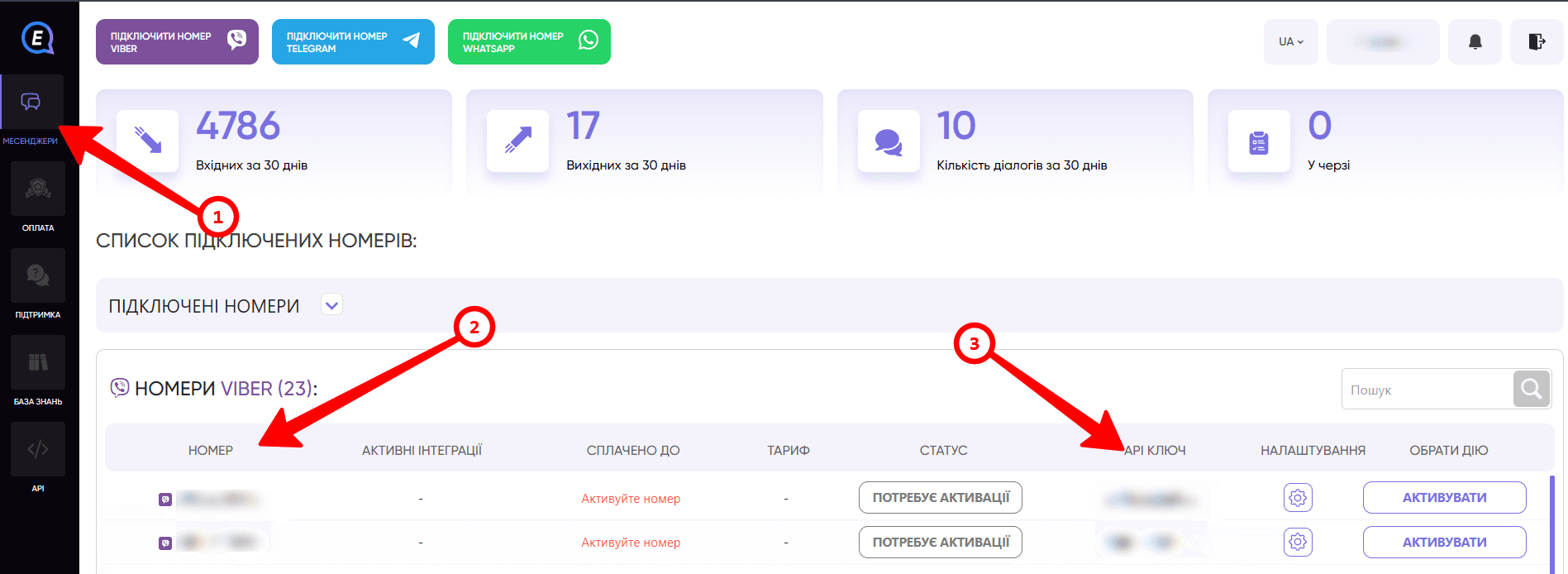
After that, go to the "Integrations" section and find the required information.
2. Setup in Kwizbot
Create a bot for e-chat and go to the bot settings, then open the "Webhooks" section.
Find the e-chat section, enter the previously obtained information: phone number, API Key, and messenger, then click "Link".
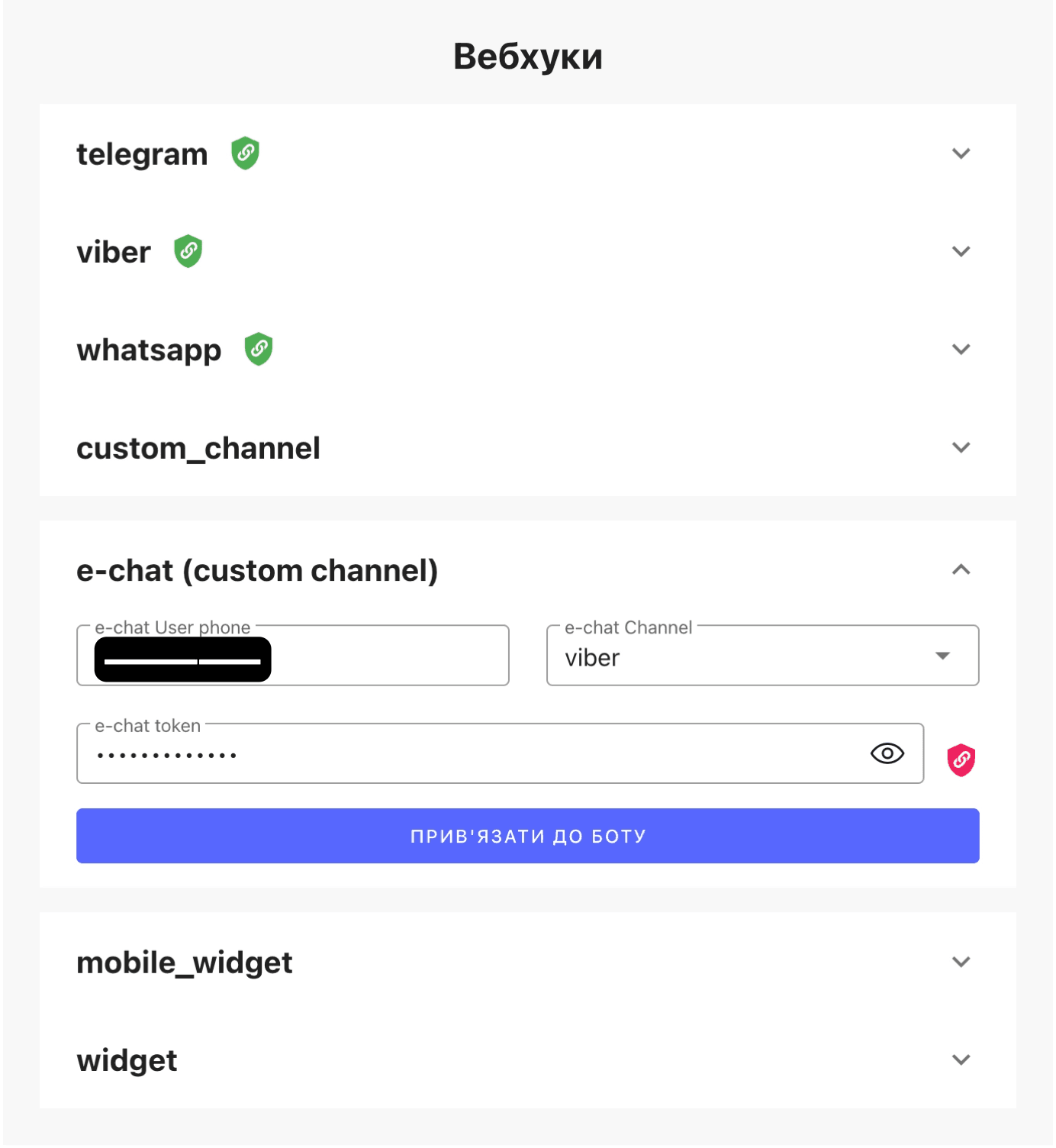
If an integration with this number already exists in Kwizbot, you must first unlink the channel from the old bot by clicking "Unlink Bot".
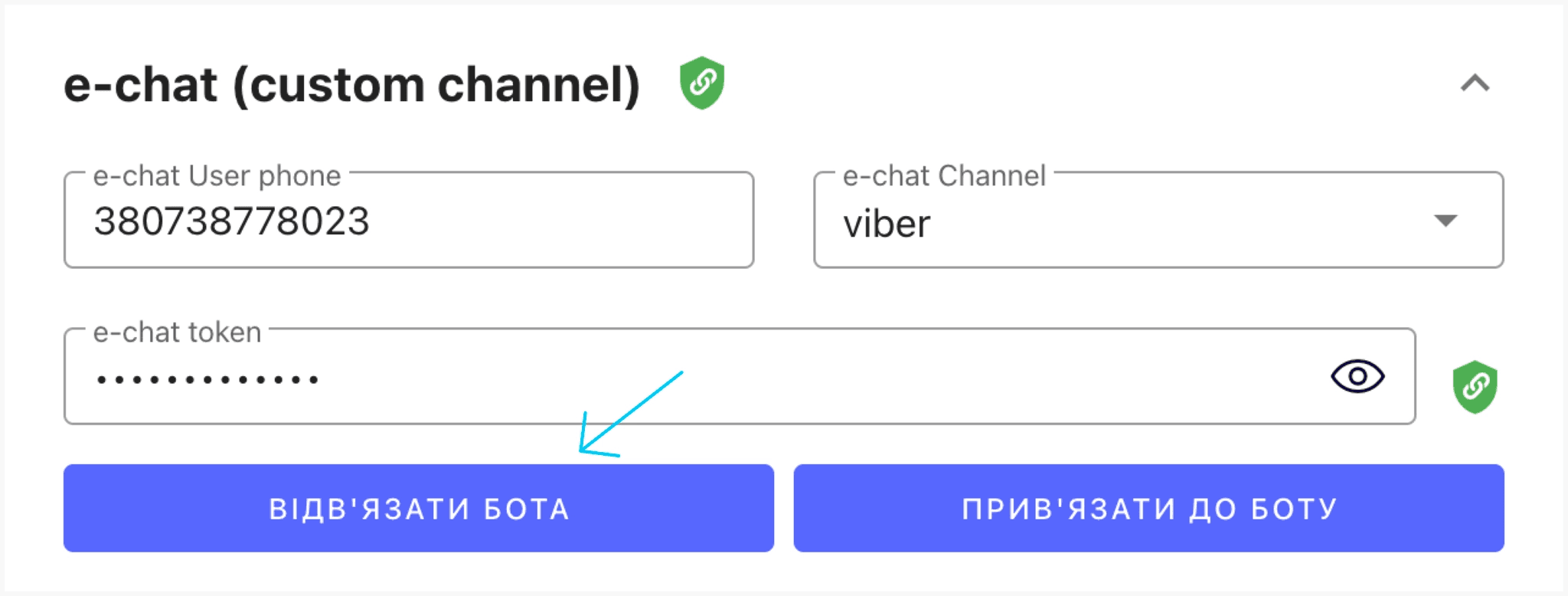
3. Scenario Setup
The simplest scenario for the e-chat platform looks as follows:
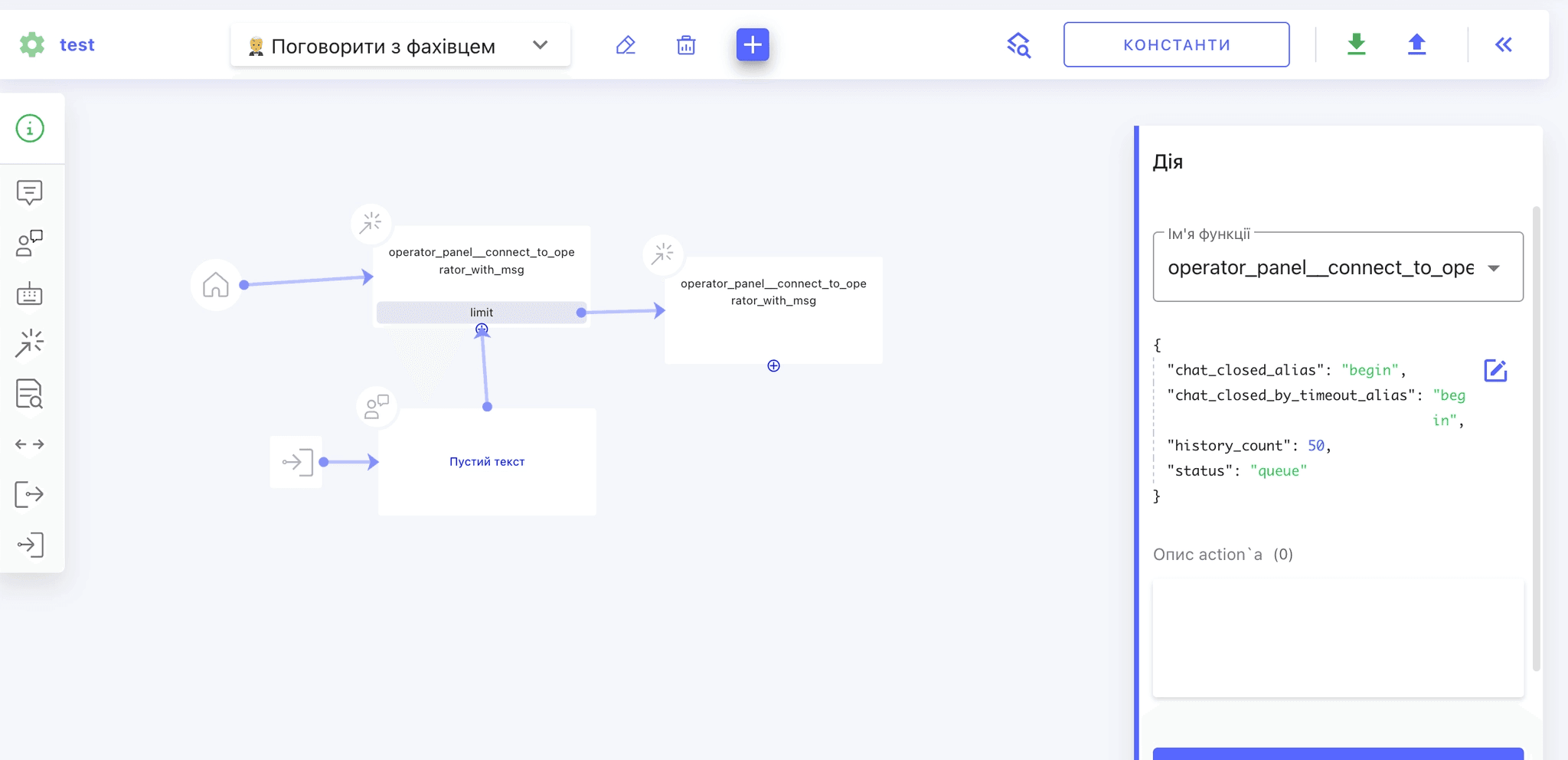
- An operator connection block with exit aliases: the chat is closed by the operator or due to a timeout.
- An exit alias with reply waiting connected.
💡 A personal account does not support keyboard blocks, an autocomplete list, or a slider in the scenario.
4. Write First
This functionality can be used to write first.
You can find more detailed instructions on using the service on the Kwizbot website.
Was this article helpful?
Share it with colleagues who might need it
Connect messengers to your CRM
Message clients first right from the client card and keep all conversations in your CRM. 7-day free trial, up to 40% off when connecting several numbers.