KeepinCRM
1) You need to log in to your Keepin portal.
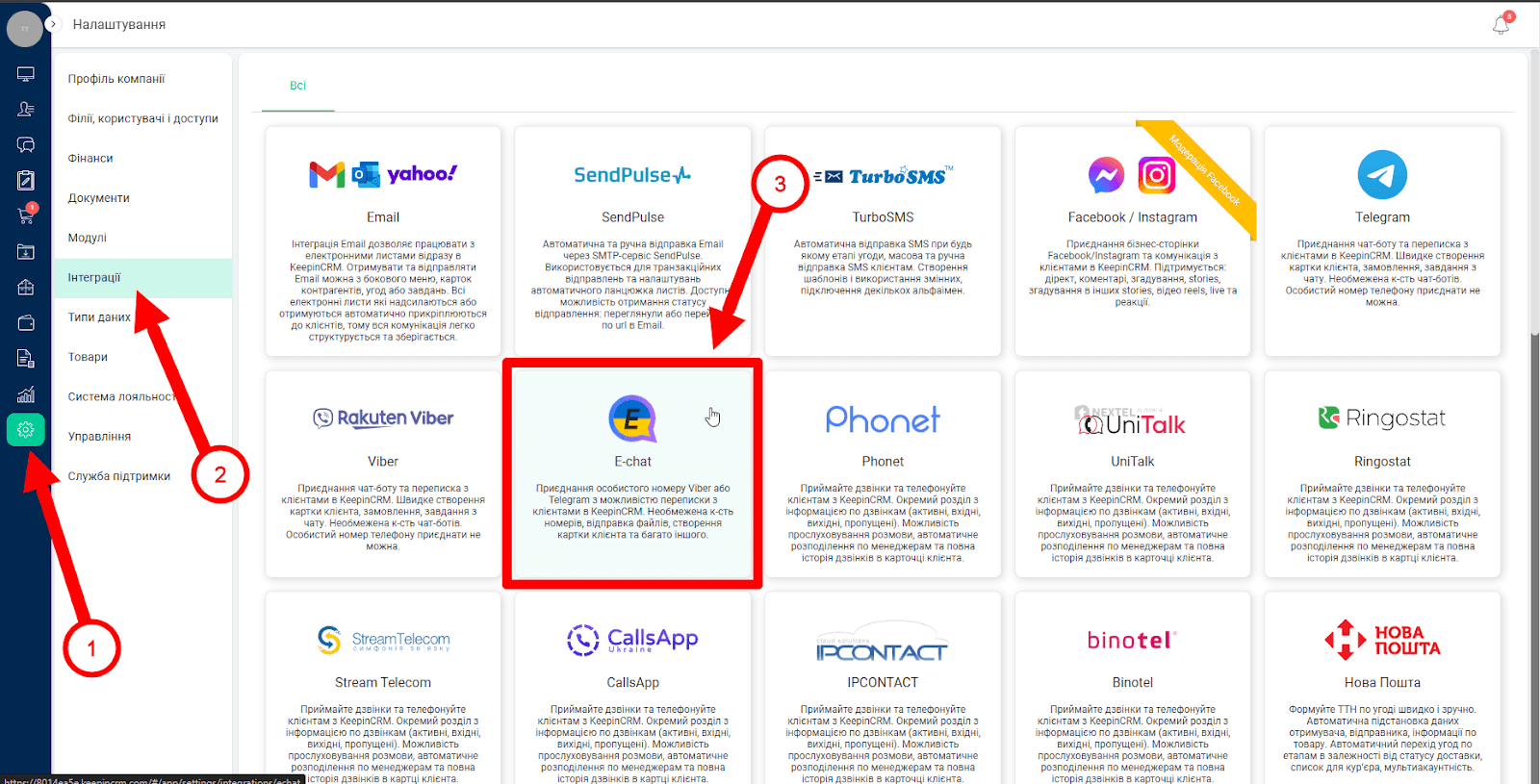
2) Go to the section: Settings > Integrations
3) Go to the section: Settings > Integrations
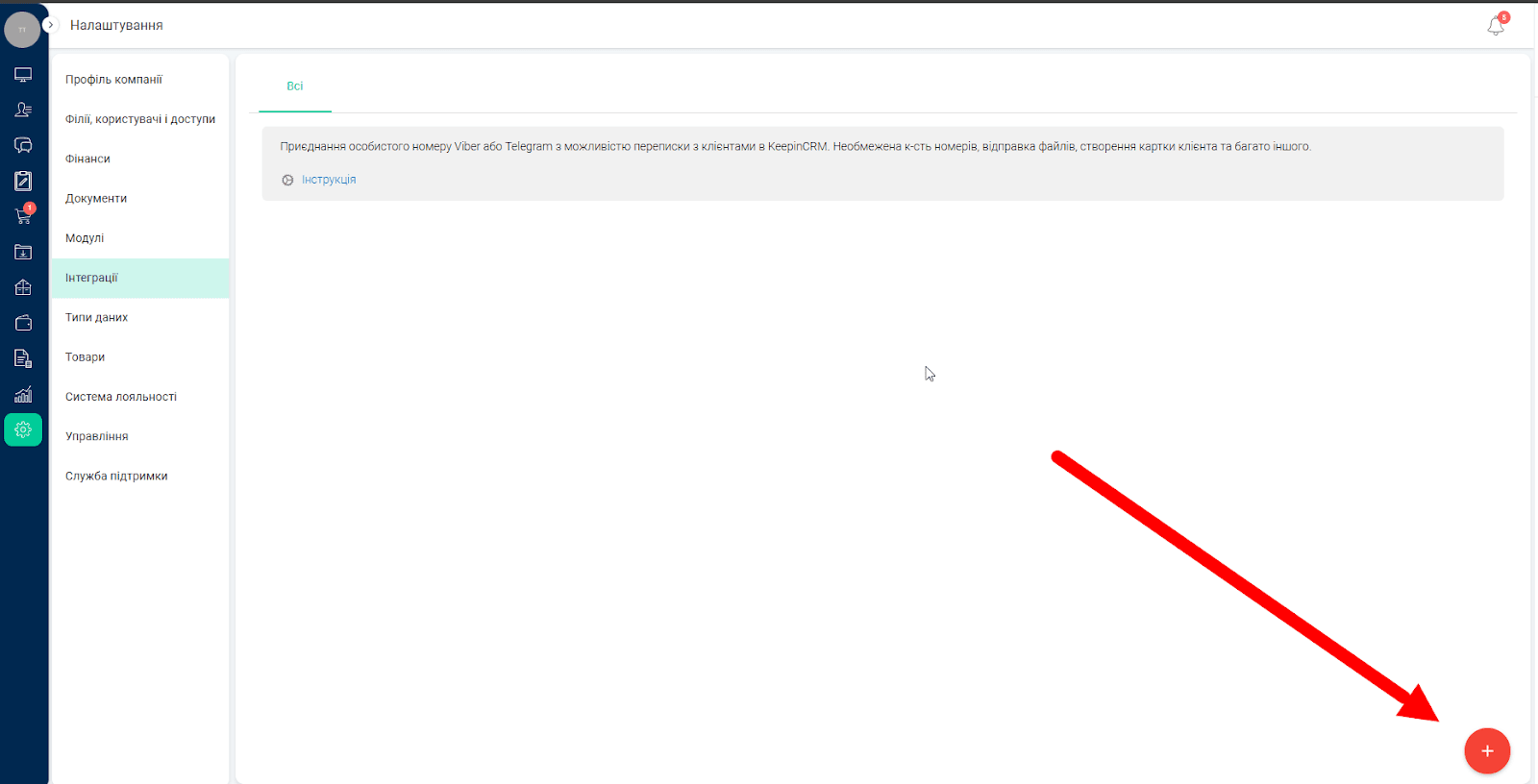
4) A new window will open, where you need to click on the plus sign at the bottom-right.
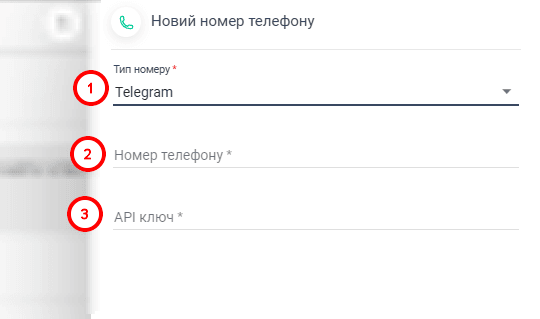
5) After clicking on the "+" - a form will open where you need to fill in all fields:
- Number type - here you specify the messenger you are going to integrate. (Viber\Telegram)
- Phone number - you enter the number you want to add.
- API-key - you can find the API-key in your personal cabinet on our site, in the section: "Integrations".
6) After filling in all the fields - click the button: "Save" at the very bottom of the form.
7) After saving - you need to select the chat operators who will be responsible for chats from this phone number. As soon as a new chat appears, all selected operators will be notified about it and will be able to take over.
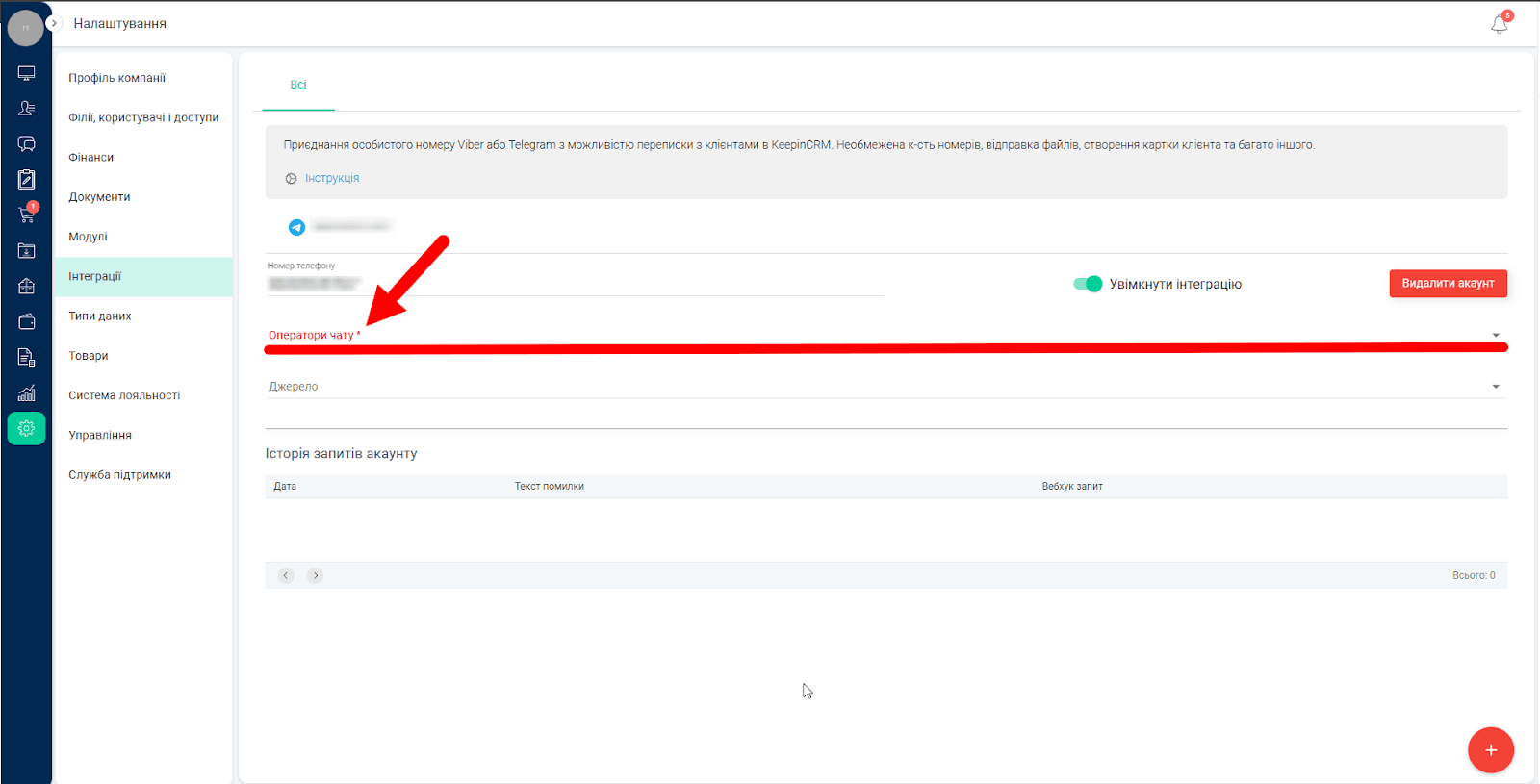
Done. The integration has been successfully created.
Сreating a new chat.
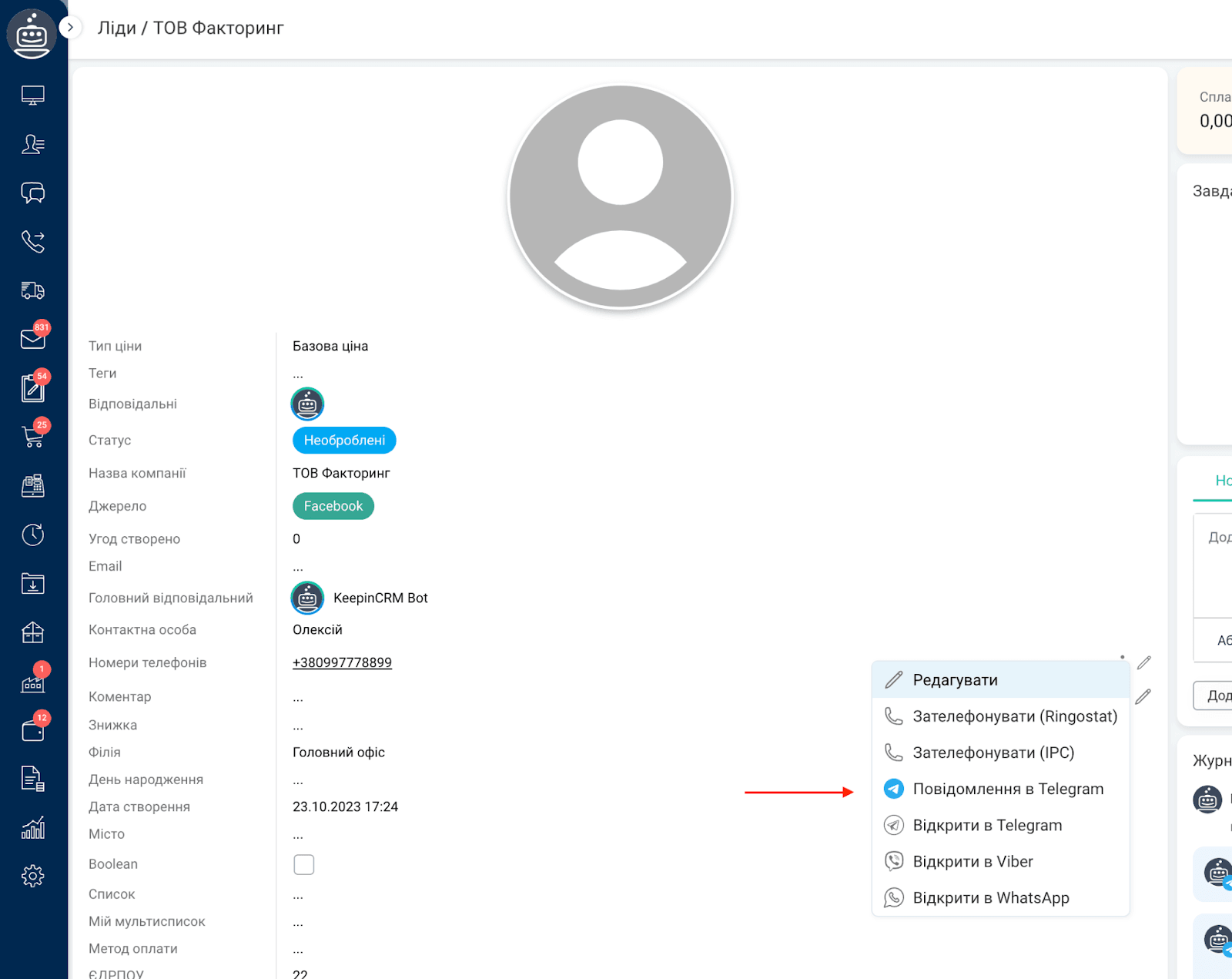
To create a new chat, you need to click on the 3 dots near the client's phone in his card, deal, task or any other place where it is available and select:
Telegram\Viber message
If the chat already exists, the window of the existing chat will be opened, if there is no chat with the user, a new chat will be created. All chats of the counterparty are stored in the Chats tab, to the right of the notes.
Was this article helpful?
Share it with colleagues who might need it
Connect messengers to your CRM
Message clients first right from the client card and keep all conversations in your CRM. 7-day free trial, up to 40% off when connecting several numbers.