Creatio
Installing the application: “MasterCRM E-Chat integration for Creatio”
First of all you need to install the local version of the widget.
You can download the application from the following link:
https://drive.google.com/file/d/13Uq9UkI70ZXDOV2a3t019c1u3phLYqSA/view?usp=sharing
If you do not plan to use a WhatsApp account, you can install the application from the Creatio marketplace.
You can then proceed to install the application in the Creatio portal.
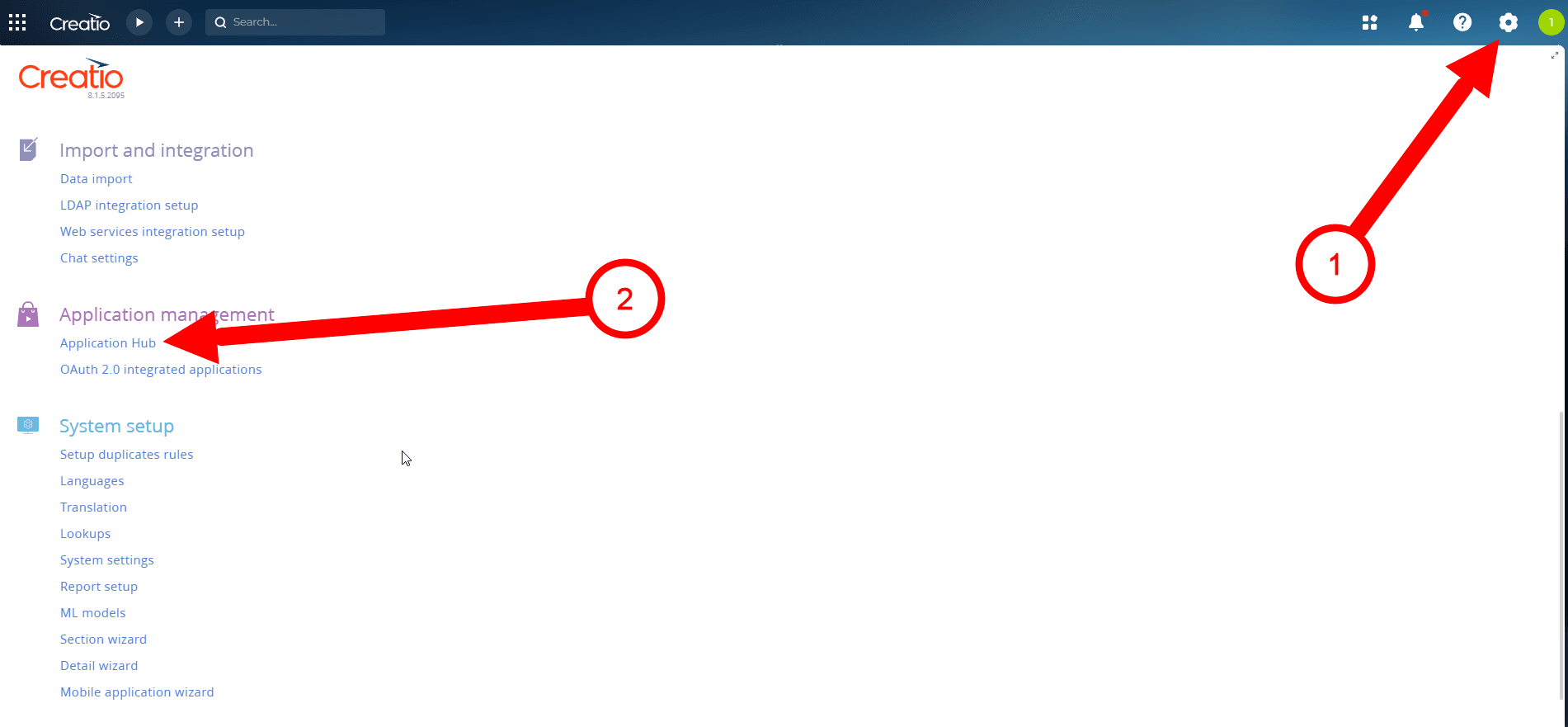
In the portal, go to Settings > Application Management > Application Hub.
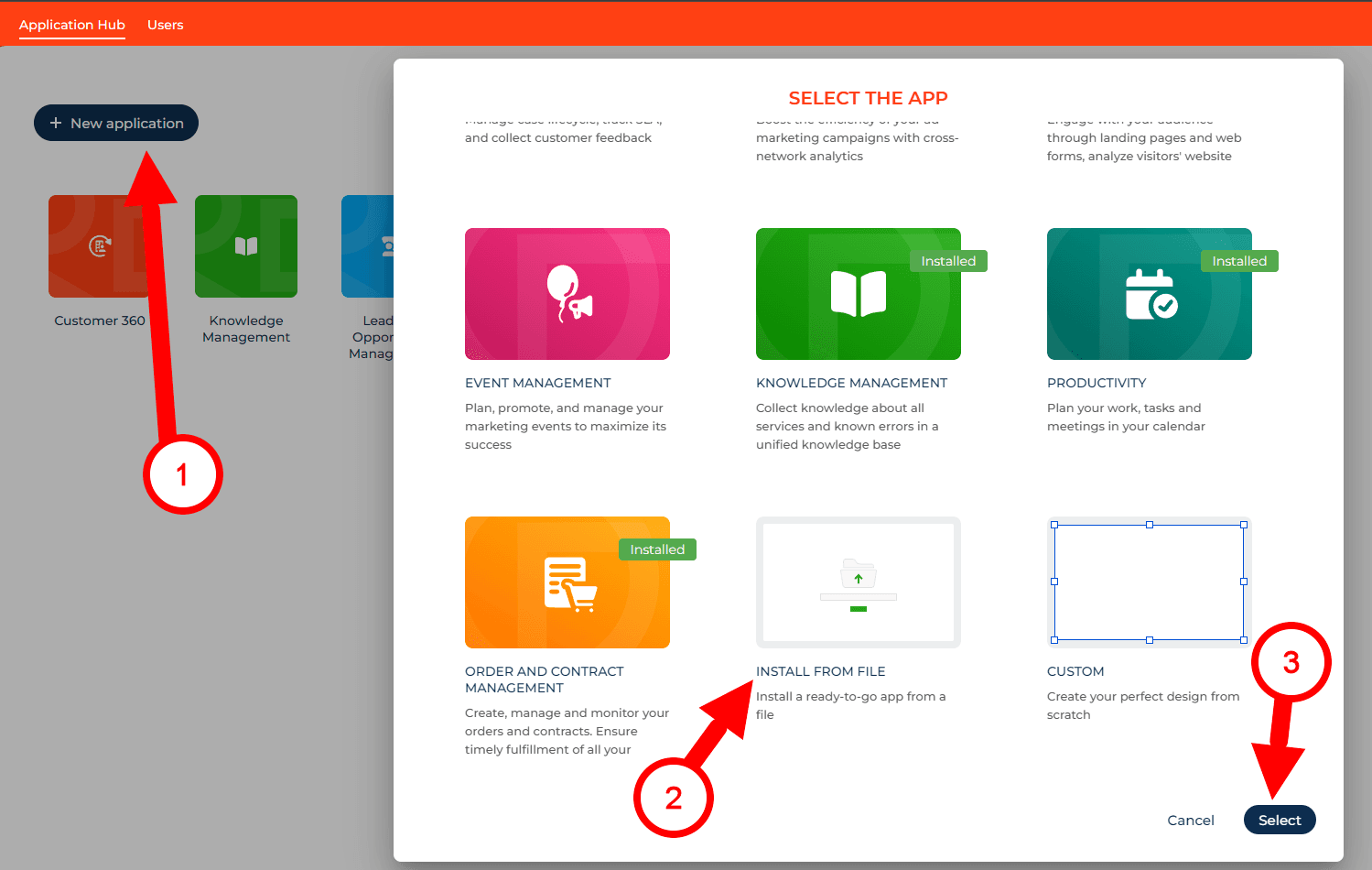
In the form that opens, click “Install”
Select the “Install from File” option
Click “Select"
A window will open where you need to select the file to install.
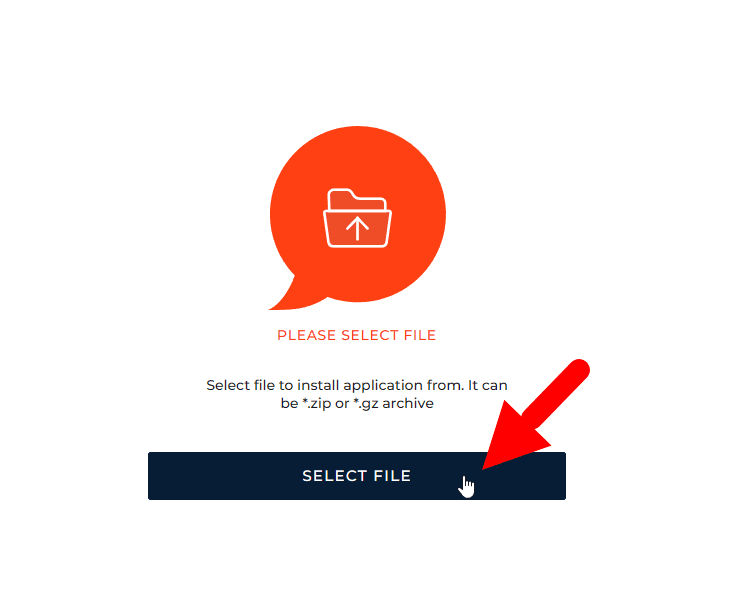
(Select the archive that we downloaded in the first paragraph from the link).
Wait for the application installation to complete.
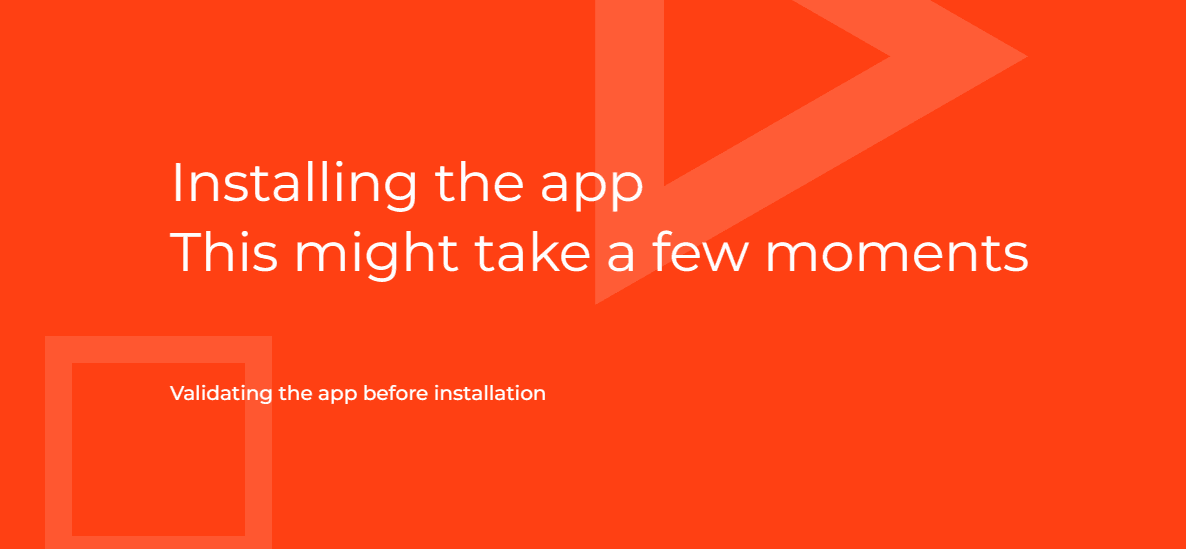
Done. The widget has been successfully installed.
Creating a channel
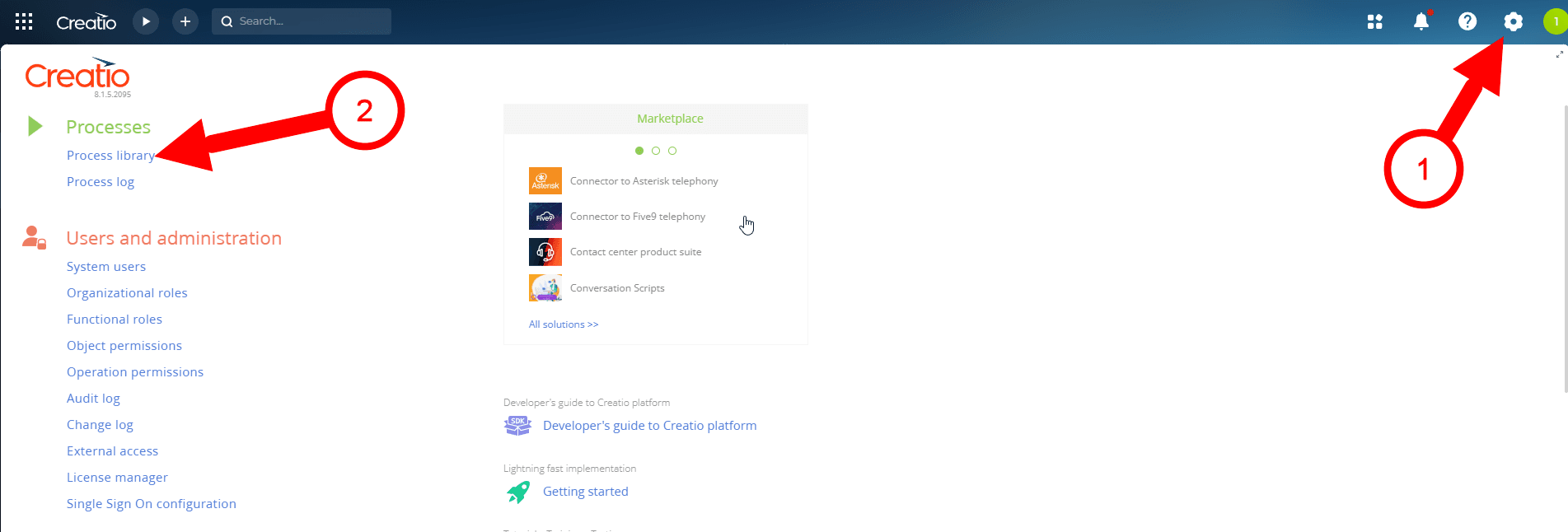
Go to Settings > Processes > Process library
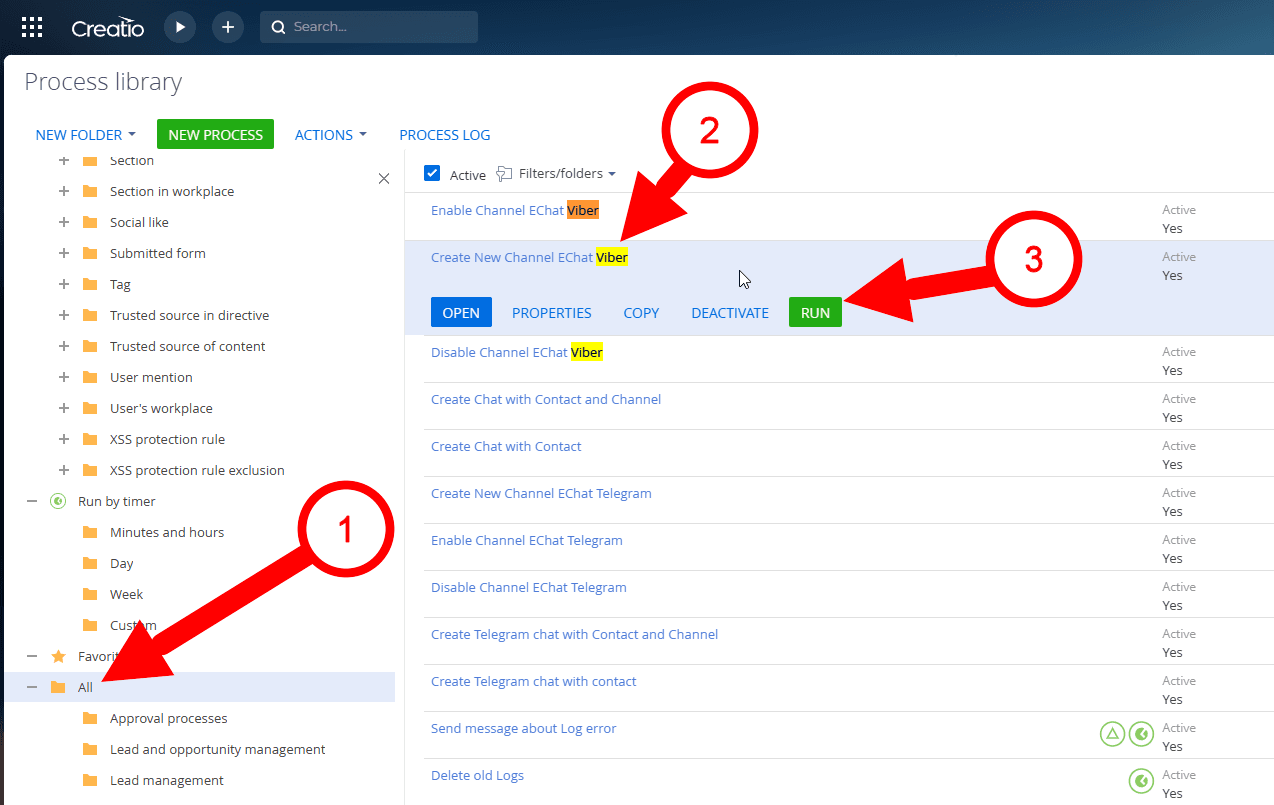
In the opened section, select the “All” folder and in the list of available processes, click on the process line: “Create New Channel EChat WhatsApp” or “Create New Channel EChat Telegram”
An additional window will open where you need to start the process by clicking on the “RUN” button.
A form for filling out will open, where you need to specify the following data:
1) Name - an arbitrary name that will be used in all interfaces of the system.
2) Number - Your account number, which is added and activated in your personal E-chat cabinet.
3) Token - API key of your number.
(You can find the API key in your personal E-chat cabinet, in the integrations section).
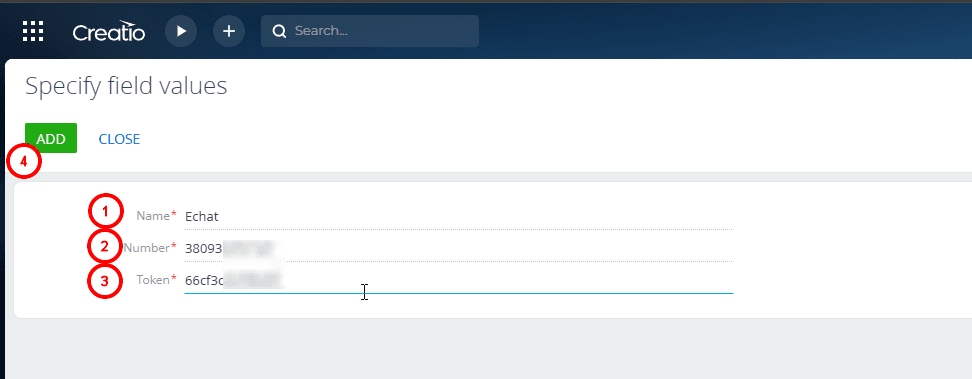
After filling out the form - click the “ADD” button in the upper-left corner.
Done. The integration of your account with Creatio has been successfully completed.
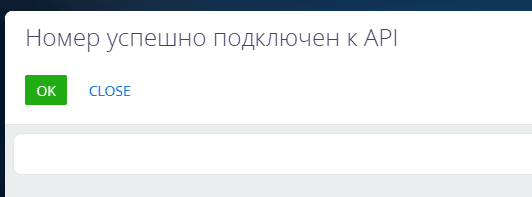
You will need to set up authorization-free services to complete the integration.
To set up the cloud version - write to Creatio support and give them the following instructions:
1) https://marketplace.creatio.com/sites/marketplace/files/app-guide/MasterCRM%20EChat%20Services%20config.pdf
2) https://marketplace.creatio.com/sites/marketplace/files/app-guide/Web-services.zip
Working with messages
The standard interface for working with chats in the Creatio communication panel is used.
To receive a chat, a registered user must be assigned to the chat processing queue and have an “Active” status.
To accept a chat from a user, click the “Accept Chat” button.
Communication is conducted through the “Chats” tab in the Communication panel.
Was this article helpful?
Share it with colleagues who might need it
Connect messengers to your CRM
Message clients first right from the client card and keep all conversations in your CRM. 7-day free trial, up to 40% off when connecting several numbers.